Community listing page, reviews may not be monitored by the author.
Item Scroller


No reviews yet
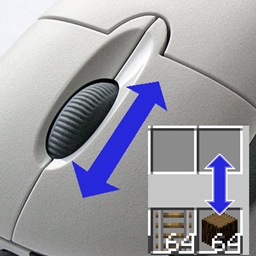
Move items by mouse wheel scrolling, Shift + dragging, etc.

Community voices
Reviews
No reviews yet. Be the first to review this project!
Get it on
Available Platforms
Compatibility
Supported Environments
Runs entirely on the client. Works on vanilla servers.
About
Project Details
For authors
Embed Badge
If you're the author of this project, you can embed a live badge anywhere that supports HTML or Markdown. It updates automatically whenever ratings change.
Use HTML for any page that supports it, or Markdown for README files and Markdown-based descriptions.
Identifiers
Platform IDs
About
Description
See this about MC 1.20.5 and later versions
TL;DR; I won't maintain the 1.20.5+ versions myself anymore, at least for now. There are ports by Sakura-Ryoko. They will be here once they are more stable, see the post for the links and details before then.
Description
A client-side mod that adds several ways of moving items in inventory GUIs. This is done by scrolling the mouse wheel over item slots (optionally while holding some modifier keys) or by holding down modifier keys and then left- or right-click dragging over the slots.
The mod has a few modifier keys (Shift, Ctrl and Ctrl + Shift) to move entire stacks, all matching items or all items. It also has special handling for Villagers to ease the annoying clicking around while trading. As of version 0.11.0, it also has special crafting inventory handling (with a 18-slot internal "recipe memory").
The basic item scrolling is similar to what NEI (and some other mods) also did/do. But I wanted more control and more ways to move items, so I made this mod to have all those modes that I find useful, in one distinct, client-side mod (so it also works on vanilla servers all the same).
There are config options to individually enable or disable more or less any of the modes. There are also options to reverse the scroll directions, or to change what for example "scrolling up" means. All the configs are accessible via the in-game config menu.
Note: All recent Item Scroller versions (starting from version 0.13.0) require the malilib library mod:
https://minecraft.curseforge.com/projects/malilib
Key combinations
- I + C - In the Rift and Fabric versions, and the LiteLoader version starting from 0.15.0, the default hotkey to open the in-game config GUI is I + C.
- Mouse wheel scroll alone: Move one item at a time from or to the slot hovered over.
- Shift + scroll: Move matching, entire stacks. The stack hovered over is moved last.
- Ctrl + scroll: Move all matching stacks to or from the other inventory.
- Alt + click: Move all matching stacks to or from the other inventory. (Same as Ctrl + scroll)
- Ctrl + shift + scroll: Move everything to or from the other inventory.
- Alt + shift + click: Move everything to or from the other inventory. (Same as Control + Shift + scroll)
- Shift + left click and hold + drag: Move all the stacks that are dragged over.
- Shift + right click and hold + drag: Move all but the last item from all the stacks that are dragged over.
- Ctrl + left or right click and hold + drag: Move only one item from all the stacks that are dragged over.
- Shift + click on an empty slot with items in the cursor: Move all matching items to that inventory.
- Shift + click outside the inventory with items in the cursor: Drop all matching items from the entire inventory.
- Ctrl + Drop key + left or right click and hold + drag: Drop one item from all dragged-over slots
- Shift + Drop key + right click and hold + drag: Drop all but one item from all dragged-over slots
- Shift + Drop key + left click and hold + drag: Drop all items from all the dragged-over slots
- W/S + Shift/Control + click (and drag): Move items up (W) or down (S) in the inventory.
Note: Before version 0.6.1, the Shift + right click and hold + drag functionality required one empty slot in the source inventory for an intermediate click action.
Special case - Villager GUI
Villager GUI has special handling (if enabled in the configs). It is only used when you hover over the output slot.
- Hold shift and scroll down to fill the recipe/trade input slots
- Hold shift and scroll up to move the output items to the player inventory as usual
- When the output slot is empty: hold shift and scroll up to move the input items to the player inventory
So basically you can just hold shift and scroll down/up repeatedly to trade items fast & easy.
Special case - Crafting grids (or similar)
Starting from version 0.11.0, there is support for crafting grid re-filling and mass crafting of items.
- The default key for the "recipe view" is S
- To change the selected recipe, either scroll or click on the recipe slots
- (Shift +) Left/right clicking on stored recipes will also move the items to the crafting grid
- Middle click on a stored recipe to clear the crafting grid
- Middle click on the crafting output slot to store that recipe to the currently selected slot
- (Shift +) scroll over the crafting output slot to craft and/or move items to the grid
- Alt + Shift + Control + C: Crafts everything possible with the currenty selected recipe with the items in the player's inventory
- Alt + Shift + Control + T: Throws any of the currently selected recipe's output items to the ground
- Alt + Shift + Control + M: Moves any of the currently selected recipe's output items to the currently open "other inventory" (= non-player inventory)
- Note: The mass crafting unfortunately doesn't currently work properly in the Forge version (in MC 1.12.x), because it doesn't have the client-side crafting recipe output fix. The Liteloader version has an option for the fix, and it will also have configurable key binds for the actions. (The Liteloader version is yet to be released on Curse)
Old Crafting Scrolling behaviour in 0.11.0:
- While hovering over a crafting output slot, scroll down to fill one set of ingredient items to the grid
- If you hold shift while scrolling down, then the grid is filled as much as possible
- For this to work, there must either be an item in the output slot (so a set of ingredient items on the grid), or you must have a stored recipe selected while scrolling down over an empty output slot
- To craft one recipe's worth of items, scroll up while hovering over he output slot
- To craft all the ingredients from the grid (basically a shift + click on the output slot), hold shift and scroll up
- To craft as much as possible from all the items available in the GUI, hold Ctrl + Shift + scroll up over the output slot
- When the output slot is empty, you can hold Shift and scroll up to move the ingredient items off the grid
- The grid can also be emptied by Ctrl + Shift + scrolling over one of the ingredient slots, like you would do the "move all items" action in other inventories
- When you scroll to craft items, or scroll to add items to the grid (if the config option craftingScrollingStoreRecipeOnFill is enabled), then the current output item and the ingredients are stored as a "recipe" to the currently selected recipe slot
- Alternatively, while hovering over an output slot with a craft result item, you can press Shift + the Recipe key + a number key to store the recipe to the slot by that number (slots 1 to 9 only).
- To see the stored recipes, and to change the selection, hold the hotkey for "Recipe store/recall" (by default S), and then either scroll, or press a number key to change the selection
- If you use the Recipe key + number method to load a recipe while hovering over the output slot, then the ingredient items are immediately moved to the grid
NOTE: This feature is actually in no way tied to crafting grids/tables. All the to-be-supported crafting grids must be added to the configuration. The vanilla crafting grids, plus all the crafting grids from Ender Utilities have been added there by default (and thus also serve as examples of how the config should look like).
To find out the GUI class name, the output slot class name and the slot numbers for the output slot and the ingredient slots, you can use the debug key combination Ctrl + Alt + Shift + I. To get the GUI class name, press it while not hovering over any slots.
To get the output slot's class and slotNumber, press it while hovering over the output slot. And then also get the ingredient slot range by pressing it while over the first and last slots for the grid. All the output will be printed to the console.
NOTE: In the output, you want the slotNumber value, not the getSlotIndex() value.
All the crafting inventories that should be supported, must be added to the scrollableCraftingGrids configuration value.
The format of one config line for adding crafting grids is:
guiclassname,outputslotclassname,outputslotnumber,gridfirstslotnumber-gridlastslotnumber
Here is an example of what one such crafting grid definition line will look like (taken from the default config, for the vanilla Crafting Table):
net.minecraft.client.gui.inventory.GuiCrafting,net.minecraft.inventory.SlotCrafting,0,1-9
Note that you must NOT use any spaces in it, or otherwise the regex won't match.
Blacklisting Slots or GUIs
Slot and GUI blacklisting was added in version 0.10.0. By default the ME Terminal slots from Applied Energistics 2, and the Crafting Station side inventory slots from Tinkers' Construct are blacklisted. You can blacklist problematic slots or entire GUIs via the in-game config menu (the blackListedSlots and the blackListedGuis options). To find out the required class name to add to the blacklist, use the debug key combination Ctrl + Alt + Shift + I while hovering over a slot to get information about the slot, or while NOT hovering over a slot to see the GUI class name.
Alternatively, (as of 0.9.0) you can also simply toggle ON/OFF Item Scroller as-needed while inside a GUI, by pressing the toggle key, (which is Ctrl + S by default, can be configured in the Controls menu). The ON/OFF status is retained for as long as the game is running. There are two different noteblock sounds to indicate what the status changed to: the higher-pitch pling when enabling, and the lower-pitch bass when disabling.
Other things...
The option useSlotPositionAwareScrollDirection (added in 0.7.0) changes the behaviour of the the scrolling direction so that it tries to detect if the "other inventory" on the screen is above or below the slot that is being scrolled over. The scroll direction will then be "scroll up to move to the inventory above, scroll down to move to the inventory below" instead of the normal "scroll up to move to the other inventory, scroll down to move to this slot/inventory". The reverse scroll direction options will also be applied on top of it still.
All the item moving in this mod is done by emulating mouse clicks on the slots.
Note: Some other mods also add the same functionality. You don't want to have multiple mods installed and doing this at the same time.
Mods that add the single item scrolling functionality in Minecraft 1.8.9+, that I know about: Mouse Tweaks, Inventory Sorter. So make sure you don't have the (single item) scroll functionality enabled in more than one mod at a time.
Note: This is a client-side-only mod!
Mod packs/permissions
- Mod packs: go ahead!
- Re-hosting the mod file otherwise is not cool, mmkay?
Short demonstration video (from version 0.4.3)
If you have questions or need help with something, the best/fastest way to get answers is on my Discord server.

Description
A client-side mod that adds several more convenient ways of moving items inside inventory screens. This is done by scrolling the mouse wheel over item slots (optionally while holding some modifier keys) or by holding down modifier keys and then left- or right-click dragging over the slots.
There are also special features for faster villager trading and crafting.
Available for Ornithe (1.12.2 [and more versions at some point]), LiteLoader (1.12.x), Rift (1.13.2), Fabric (1.14+) and Forge (1.8 - 1.14.4).
More background and details...
The mod has a few configurable modifier keys (depending on the mod/MC version, in modern versions by default Shift, Ctrl and Alt) to move entire stacks, all matching items, or all items at once. It also has special handling for Villagers to ease the annoying clicking around while trading. As of version 0.11.0, it also has special crafting inventory handling (with a 18-slot internal "recipe memory").
The basic item scrolling feature is similar to what NEI (and some other mods) also did/do. But I wanted more control and more ways to move items, so I made this mod to have all those modes that I find useful, in one distinct, client-side mod (so it also works on vanilla servers all the same).
There are config options to individually enable or disable more or less any of the modes. There are also options to reverse the scroll directions, or to change what for example "scrolling up" means. All the configs are accessible via the in-game config menu.
Note: All recent Item Scroller versions (starting from version 0.13.0) require the malilib library mod:
https://modrinth.com/mod/malilib
Key combinations
Some of the default hotkeys
I + C- In the modern (Rift, Fabric, LiteLoader, Ornithe) versions, the default hotkey to open the in-game config screen isI + CMouse wheel scrollalone: Move one item at a time from or to the slot hovered overShift + scroll: Move matching, entire stacks one by one. The stack hovered over is moved last.Ctrl + scroll: Move all matching stacks to or from the other inventory.Alt + click: Move all matching stacks to or from the other inventory. (Same asCtrl + scroll.)Ctrl + Shift + scroll: Move everything to or from the other inventoryAlt + Shift + click: Move everything to or from the other inventory. (Same asControl + Shift + scroll.)Shift + left click and hold + drag: Move all the stacks that are dragged overShift + right click and hold + drag: Move all but the last item from all the stacks that are dragged overCtrl + left or right click and hold + drag: Move only one item from all the stacks that are dragged over.Shift + clickon an empty slot with items in the cursor: Move all matching items to that inventoryShift + clickoutside the inventory with items in the cursor: Drop all matching items from the entire inventoryCtrl + Drop key + left or right click and hold + drag: Drop one item from all dragged-over slotsShift + Drop key + right click and hold + drag: Drop all but one item from all dragged-over slotsShift + Drop key + left click and hold + drag: Drop all items from all the dragged-over slotsW/S + Shift/Control + click (and drag): Move items up (W) or down (S) in the inventory
Note: Before version 0.6.1, the Shift + right click and hold + drag functionality required one empty slot in the source inventory for an intermediate click action.
Villager GUIs
Villager screen special features
Villager GUI has special handling (if enabled in the configs). It is only used when you hover over the output slot.
Hold shift and scroll down: Fill the recipe/trade input slotsHold shift and scroll up: Move the output items to the player inventory as usual- When the output slot is empty: hold
Shift and scroll upto move the input items to the player inventory
So basically you can just hold shift and scroll down/up repeatedly to trade items fast & easy.
In the 1.12.2 and 1.16.5+ versions you can right click the trade buttons to fully trade that one trade. You can also middle click or Shift + middle click to mark trades as favorites or "global favorites" (= not per individual villager), which moves those trades to the top of the list, and it also allows you to use the hotkey to trade all favorites at once. If a given villager has any non-global favorites, then that takes precedence and the global favorites are not used for that villager (until the per-villager favorites are all unmarked).
Crafting features
About the crafting features
There are some (quick) crafting helpers features. Most notably the massCraft and craftEverything hotkeys.
For any of these to work, you need to store a crafting recipe to Item Scroller's own "recipe storage". By default you open the recipe view by holding A inside an inventory screen. You add recipes by holding open the recipe view with A, and then middle clicking on the output item on a crafting grid. You can clear a stored recipe by middle clicking on an empty crafting output slot.
Note that the crafting system needs the crafting inventory and slots to be added to the config, so by default it only works for the vanilla player crafting and crafting table inventories.
Note that the massCraft feature is pretty laggy and unreliable due to the massive amount of continuous slot clicks it does, and when the server to client syncs happen in the middle of the slot click cpam, that can lead to outdated inventory state on the client, which basically means that mass craft can craft the wrong items (partial recipes).
So in general I would recommend avoiding the massCraft feature unless you absolutely need to use it. And if you do, then you would probably want to use Andrews' "item scroller craft fix" fork instead (found here), as it implements the vanilla recipe book item transfer fo mass crafting. That makes it vastly more reliable and less laggy. I will add it to the base mod at some point after I rewrite the entire mod from scratch...
If you only need to craft a "moderate amount" of items, like one inventory of nuggets into ingots or similar, then the craftEverything hotkey is what you want. It crafts everything possible once. It doesn't repeat or loop, so it also shouldn't craft the wrong things as nothing "external" will update the inventory state during that one operation. It doesn't nicely work for "expanding" recipes however, such as logs to planks, because it doesn't throw any items out, so the inventory will fill up midway if you try to craft an entire inventory of logs to planks for example.
Screenshots
Gallery
Versions
Files
Relations
Project Relations
More like this
Similar Mods
Suggestions use data such as tags, dependencies, dependents, descriptions, titles, and more to rank how much they overlap with this mod.
On ModDex
Community snapshot
By the numbers
Statistics
 (opens in a new tab)
Get it on
Available Platforms
On ModDex
Community snapshot
By the numbers