Community listing page, reviews here may not be monitored by the author.
SimpleSorterR


No reviews yet
A lightweight client-side Fabric inventory sorting mod.
Community voices
Reviews
No reviews yet. Be the first to review this project!
Get it on
Available Platforms
Compatibility
Supported Environments
Runs entirely on the client. Works on vanilla servers.
About
Project Details
For authors
Embed Badge
If you're the author of this project, you can embed a live badge anywhere that supports HTML or Markdown. It updates automatically whenever ratings change.
Use HTML for any page that supports it, or Markdown for README files and Markdown-based descriptions.
Identifiers
Platform IDs
About
Description
SimpleSorterR
A lightweight client-side inventory sorting mod.
Features
One-Key Smart Sorting
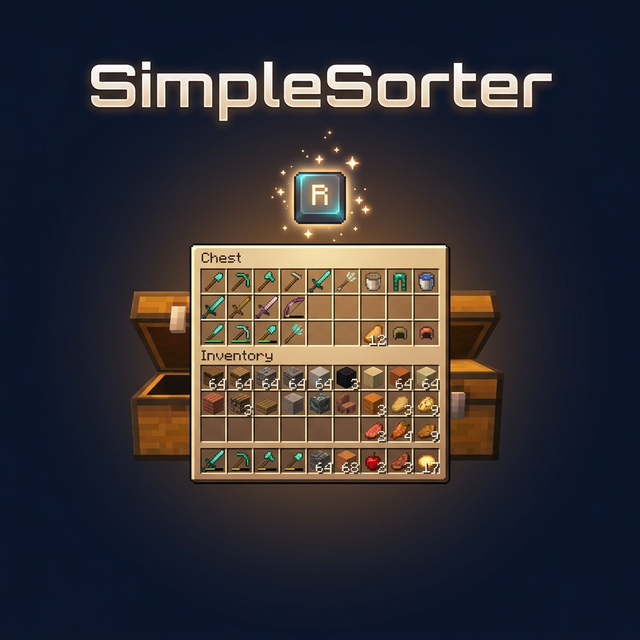
Open an inventory or container and press R to sort items.
- Auto Stack Merging — Automatically consolidates partial stacks of the same item into full stacks, freeing up valuable slots
- Creative Tab Native Sorting — Items are arranged using Minecraft’s Creative Mode tab order and support modded items
- Custom Sort Order — Adjust
tabOrderin the config file to change tab priority - Pinned Items — Configure
pinnedItemsto keep specific items always sorted first - Dynamic Container Blacklist — All storage containers are sortable by default (including modded containers like Reinforced Chests). Functional containers are excluded by exact class names in
blockedContainers; you can also press B while a container is open to toggle it automatically - No-Screen Main Inventory Sorting — Enable
sortInventoryWhenNoScreento sort the player main inventory with R while no screen is open - Config Hot-Reload — Edit
simplesorter.jsondirectly, changes take effect on the next R-key sort without restarting the game - Pure Client-Side — Sorting is performed by simulated clicks, so the server does not need the mod
Mouse Tweaks
Shift + Drag to Quick-Move
Hold Shift and left-click drag across multiple slots — every slot you pass over will be instantly quick-moved to the opposite inventory.
Useful when moving many slots at once.
Shift + Double-Click to Move All Same Items
While holding an item on your cursor, Shift + Double-Click on a matching item to instantly quick-move all identical items from that inventory to the other side.
Useful for pulling all matching items out of a chest.
Space + Double-Click to Move Everything
Hold Space and Double-Click any slot in a container to instantly quick-move every single item from that inventory to the opposite side.
Useful for quickly emptying a chest.
V + Double-Click to Deposit Matching Items
Hold V and Double-Click any filled slot in a container to quick-move matching items from the player main inventory into the container, but only when that item already exists in the container.
- Does not move hotbar slots
- Does not move locked slots
- Does not move items that are not already present in the container
- Does not trigger while an item is held on the cursor
Useful for topping up a sorted chest from your main inventory.
Slot Locking
Hold Alt and click any slot to lock it — locked slots display an overlay.
- Locked slots are never moved when sorting with R
- Locked hotbar slots are protected from Q-key drops (prevents accidental discarding)
- Lock state is automatically saved and independent per save file
- Alt + click again to unlock
- Hold Alt + left-click drag to lock or unlock multiple slots in one sweep. The first slot decides whether the drag locks or unlocks
- Overlay color can be customized with
lockOverlayColor, supporting both#RRGGBBand#AARRGGBB
Color values use Hex color codes. Both #RRGGBB and #AARRGGBB are supported. The 8-digit format uses ARGB order: AA opacity, RR red, GG green, BB blue. It is not RGBA.
Common AA values: 40 very transparent, 80 half transparent, C0 mostly opaque, FF fully opaque. Examples: #80FF0000 half-transparent red, #8000FF00 half-transparent green, #800000FF half-transparent blue.
Useful for keeping tools in fixed slots and reducing accidental drops.
Auto Replacer
- Tool Break Replacement — When a held tool breaks, automatically equips a replacement of the same type from your inventory
- Stackable Item Refill — When a held stackable item runs out (e.g. placing blocks), automatically refills from your inventory
- Can be toggled on/off in the settings screen
Useful when building or mining with repeated item replacement.
Caps Lock + Double-Click to Batch Drop
Hold Caps Lock and double-click any slot to drop all identical items in that inventory (using the Q-key drop action).
Useful for clearing large quantities of one item.
In-Game Configuration
Press Z + I (default combo) to open a graphical settings panel in-game:
- Tab Sort Order (tabOrder) — Customize the priority of Creative Mode tabs
- Pinned Items (pinnedItems) — Specify item IDs that always sort to the front
- Container Blacklist (blockedContainers) — Add container class names to exclude from sorting, or press B while a container is open to write the current class name automatically
- Lock Overlay Color (lockOverlayColor) — Customize locked-slot overlay color, for example
#80FF0000 - No-Screen Sort (sortInventoryWhenNoScreen) — Allow R to sort the player main inventory while no screen is open
- Z-Key Guard Toggle — Disable the Z-key requirement to open settings with just I
- Auto Replacer Toggle — Enable/disable automatic tool and item replacement
- Localized UI — Settings interface automatically adapts to your game language (English / Chinese)
Also accessible from Mod Menu if installed.
Advanced settings can be edited directly in
config/simplesorter.json. Changes take effect on the next R-key sort.
⚠️
blockedContainersuses exact class-name matching, not fuzzy matching. Depending on mappings and Minecraft version, class names may look likeGenericContainerScreenHandlerinstead ofChestMenu; the safest workflow is opening the target container and pressing B so the mod writes the correct name for you.
Requirements
| Dependency | Required? | Notes |
|---|---|---|
| Fabric Loader ≥ 0.16.5 | ✅ Required | Mod loader |
| Fabric API | ✅ Required | Core API library |
| Fabric Language Kotlin | ✅ Required | Kotlin runtime support |
| Cloth Config API | ❌ Bundled | Config screen framework (already included in the mod jar) |
| Mod Menu | ❌ Optional | Adds a settings entry in the mod list |
Installation
- Install Fabric Loader and Fabric API
- Download Fabric Language Kotlin and place it in your
modsfolder - Pick the jar matching your Minecraft version and drop it into your
modsfolder - Launch the game
Keybind Reference
All keybinds appear under the SimpleSorterR category in Minecraft’s Controls screen and can be changed there.
| Key | Action | Context |
|---|---|---|
| R | Sort & organize inventory | While a container is open; can also sort the main inventory with no screen if enabled |
| Alt + Click | Lock / Unlock slot | Prevents that slot from being sorted |
| Alt + Left-Drag | Batch lock / unlock slots | Drag across multiple slots |
| B | Toggle current container blacklist | When the current container should not be sorted |
| Caps Lock + Double-Click | Batch drop identical items | Quickly clear large stacks |
| Shift + Drag | Quick-move multiple slots | Drag across slots while holding Shift |
| Shift + Double-Click | Move all identical items | While holding an item on cursor |
| Space + Double-Click | Move all items from container | Empty an entire inventory at once |
| V + Double-Click | Deposit matching items | Move only items already present in the container from main inventory |
| Z + I | Open settings screen | Available anytime |
SimpleSorterR
A simple Minecraft inventory sorting tool.
SimpleSorterR
A lightweight client-side inventory sorting mod.
Features
One-Key Smart Sorting
Open an inventory or container and press R to sort items.
- Auto Stack Merging — Automatically consolidates partial stacks of the same item into full stacks, freeing up valuable slots
- Creative Tab Native Sorting — Items are arranged using Minecraft’s Creative Mode tab order and support modded items
- Custom Sort Order — Adjust
tabOrderin the config file to change tab priority - Pinned Items — Configure
pinnedItemsto keep specific items always sorted first - Dynamic Container Blacklist — All storage containers are sortable by default (including modded containers like Reinforced Chests). Functional containers are excluded by exact class names in
blockedContainers; you can also press B while a container is open to toggle it automatically - No-Screen Main Inventory Sorting — Enable
sortInventoryWhenNoScreento sort the player main inventory with R while no screen is open - Config Hot-Reload — Edit
simplesorter.jsondirectly, changes take effect on the next R-key sort without restarting the game - Pure Client-Side — Sorting is performed by simulated clicks, so the server does not need the mod
Mouse Tweaks
Shift + Drag to Quick-Move
Hold Shift and left-click drag across multiple slots — every slot you pass over will be instantly quick-moved to the opposite inventory.
Useful when moving many slots at once.
Shift + Double-Click to Move All Same Items
While holding an item on your cursor, Shift + Double-Click on a matching item to instantly quick-move all identical items from that inventory to the other side.
Useful for pulling all matching items out of a chest.
Space + Double-Click to Move Everything
Hold Space and Double-Click any slot in a container to instantly quick-move every single item from that inventory to the opposite side.
Useful for quickly emptying a chest.
V + Double-Click to Deposit Matching Items
Hold V and Double-Click any filled slot in a container to quick-move matching items from the player main inventory into the container, but only when that item already exists in the container.
- Does not move hotbar slots
- Does not move locked slots
- Does not move items that are not already present in the container
- Does not trigger while an item is held on the cursor
Useful for topping up a sorted chest from your main inventory.
Slot Locking
Hold Alt and click any slot to lock it — locked slots display an overlay.
- Locked slots are never moved when sorting with R
- Locked hotbar slots are protected from Q-key drops (prevents accidental discarding)
- Lock state is automatically saved and independent per save file
- Alt + click again to unlock
- Hold Alt + left-click drag to lock or unlock multiple slots in one sweep. The first slot decides whether the drag locks or unlocks
- Overlay color can be customized with
lockOverlayColor, supporting both#RRGGBBand#AARRGGBB
Color values use Hex color codes. Both #RRGGBB and #AARRGGBB are supported. The 8-digit format uses ARGB order: AA opacity, RR red, GG green, BB blue. It is not RGBA.
Common AA values: 40 very transparent, 80 half transparent, C0 mostly opaque, FF fully opaque. Examples: #80FF0000 half-transparent red, #8000FF00 half-transparent green, #800000FF half-transparent blue.
Useful for keeping tools in fixed slots and reducing accidental drops.
Auto Replacer
- Tool Break Replacement — When a held tool breaks, automatically equips a replacement of the same type from your inventory
- Stackable Item Refill — When a held stackable item runs out (e.g. placing blocks), automatically refills from your inventory
- Can be toggled on/off in the settings screen
Useful when building or mining with repeated item replacement.
Caps Lock + Double-Click to Batch Drop
Hold Caps Lock and double-click any slot to drop all identical items in that inventory (using the Q-key drop action).
Useful for clearing large quantities of one item.
In-Game Configuration
Press Z + I (default combo) to open a graphical settings panel in-game:
- Tab Sort Order (tabOrder) — Customize the priority of Creative Mode tabs
- Pinned Items (pinnedItems) — Specify item IDs that always sort to the front
- Container Blacklist (blockedContainers) — Add container class names to exclude from sorting, or press B while a container is open to write the current class name automatically
- Lock Overlay Color (lockOverlayColor) — Customize locked-slot overlay color, for example
#80FF0000 - No-Screen Sort (sortInventoryWhenNoScreen) — Allow R to sort the player main inventory while no screen is open
- Z-Key Guard Toggle — Disable the Z-key requirement to open settings with just I
- Auto Replacer Toggle — Enable/disable automatic tool and item replacement
- Localized UI — Settings interface automatically adapts to your game language (English / Chinese)
Also accessible from Mod Menu if installed.
Advanced settings can be edited directly in
config/simplesorter.json. Changes take effect on the next R-key sort.
⚠️
blockedContainersuses exact class-name matching, not fuzzy matching. Depending on mappings and Minecraft version, class names may look likeGenericContainerScreenHandlerinstead ofChestMenu; the safest workflow is opening the target container and pressing B so the mod writes the correct name for you.
Requirements
| Dependency | Required? | Notes |
|---|---|---|
| Fabric Loader ≥ 0.16.5 | ✅ Required | Mod loader |
| Fabric API | ✅ Required | Core API library |
| Fabric Language Kotlin | ✅ Required | Kotlin runtime support |
| Cloth Config API | ❌ Bundled | Config screen framework (already included in the mod jar) |
| Mod Menu | ❌ Optional | Adds a settings entry in the mod list |
Installation
- Install Fabric Loader and Fabric API
- Download Fabric Language Kotlin and place it in your
modsfolder - Pick the jar matching your Minecraft version and drop it into your
modsfolder - Launch the game
Keybind Reference
All keybinds appear under the SimpleSorterR category in Minecraft’s Controls screen and can be changed there.
| Key | Action | Context |
|---|---|---|
| R | Sort & organize inventory | While a container is open; can also sort the main inventory with no screen if enabled |
| Alt + Click | Lock / Unlock slot | Prevents that slot from being sorted |
| Alt + Left-Drag | Batch lock / unlock slots | Drag across multiple slots |
| B | Toggle current container blacklist | When the current container should not be sorted |
| Caps Lock + Double-Click | Batch drop identical items | Quickly clear large stacks |
| Shift + Drag | Quick-move multiple slots | Drag across slots while holding Shift |
| Shift + Double-Click | Move all identical items | While holding an item on cursor |
| Space + Double-Click | Move all items from container | Empty an entire inventory at once |
| V + Double-Click | Deposit matching items | Move only items already present in the container from main inventory |
| Z + I | Open settings screen | Available anytime |
SimpleSorterR
A simple Minecraft inventory sorting tool.
Screenshots
Gallery
-
 simplesorter simplesorter
Versions
Files
Relations
Project Relations
More like this
Similar Mods
Suggestions use data such as tags, dependencies, dependents, descriptions, titles, and more to rank how much they overlap with this mod.
On ModDex
Community snapshot
By the numbers
Statistics
Want to reach Minecraft players?
We're looking for a server hosting partner to feature here and other parts of the site. Interested? Send us a message!
Get in touchGet it on
Available Platforms
On ModDex
Community snapshot
By the numbers