
Community listing page, reviews here may not be monitored by the author.
FTB Filter System

No reviews yet
FTB Filter System (aka FFS) is a powerful item filtering mod with friendly GUI editing
Community voices
Reviews
No reviews yet. Be the first to review this project!
Get it on
Available Platforms
About
Project Details
For authors
Embed Badge
If you're the author of this project, you can embed a live badge anywhere that supports HTML or Markdown. It updates automatically whenever ratings change.
Use HTML for any page that supports it, or Markdown for README files and Markdown-based descriptions.
Identifiers
Platform IDs
About
Description
FTB Filter System
Overview
FTB Filter System (aka FFS) is a powerful item filtering mod with friendly GUI editing. It doesn't do much on its own, but is intended to be used by other mods which need to filter items; FTB Quests in particular, but it offers an API which any mod can use.
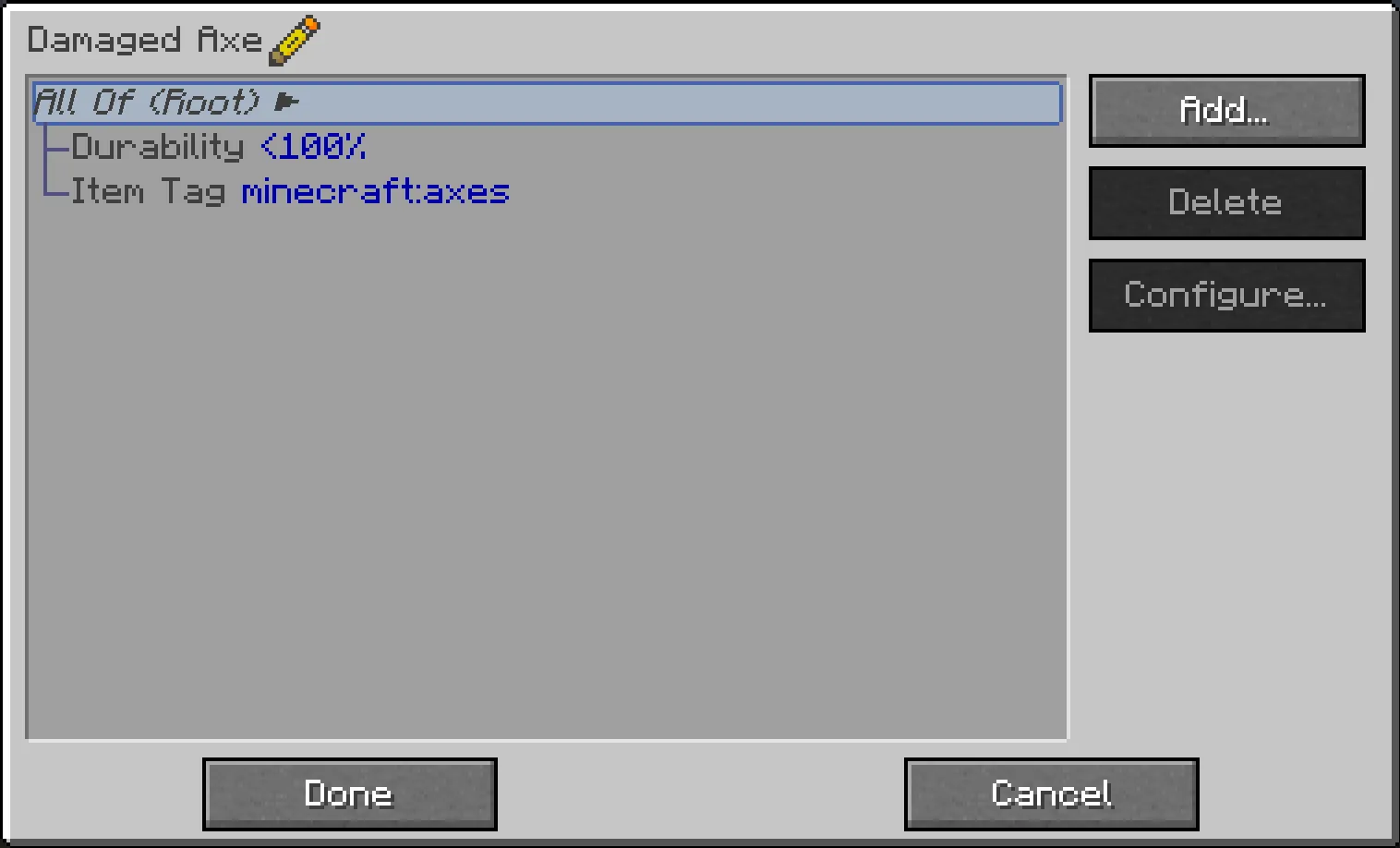
Using FFS
FFS adds a single item, the Smart Filter. All configuration is done via this item, by simply right-clicking it. This opens a GUI, with a list which initially contains just a "Root" element, and "Add" / "Delete" / "Configure" buttons on the right:
- Click "Add…" to pop up a list of available subfilters which you can add.
- On the left side of the list are compound filters, to which more filters can be added as children, forming a filter hierarchy.
- On the right side (in possibly multiple columns) are basic filters, which do actual matching against items.
- All the filter buttons have a tooltip with a brief explanation of what they do (should be obvious in general)
- Click "Delete" to delete the currently-selected filter.
- Deleting a compound filter also deletes all its children
- Click "Configure…" to pop up another screen allowing the currently-selected filter to be configured
- Not all filters can be configured; compound filters don't have any configuration, and some basic filters don't either
- You can also double-click any filter in the list to open its configuration screen
At the bottom are "Done" and "Cancel" buttons:
- Click "Done" to save any changes you've made to the filter
- Click "Cancel" (or press Escape) to discard any changes (you will be prompted to confirm discarding unsaved changes)
Other tips and tricks:
- Some filters allow dragging of items from JEI to configure them: the Item Filter, the NBT and Fuzzy NBT filters, and the Mod filter
- Filters can be dragged in the list to move them around in the filter hierarchy, subject to the following rules:
- The Root filter can never be moved
- Filters can only be dragged onto compound filters
- Compound filters can only be dragged onto filters at the same level or higher up in the hierarchy (dragging a filter into its own child isn't a very sane thing to do…)
- You can quickly test if a filter matches what it's supposed to:
- Hold the configured filter in your main hand, and the item to be tested in your offhand
- Then sneak-right-click the filter and you'll get a chat response indicating a match success or failure
Support
- For Modpack issues, please go here: https://go.ftb.team/support-modpack
- For Mod issues, please go here: https://go.ftb.team/support-mod-issues
- Just got a question? Check out our Discord: https://go.ftb.team/discord
Keep up to date


Screenshots
Gallery
-
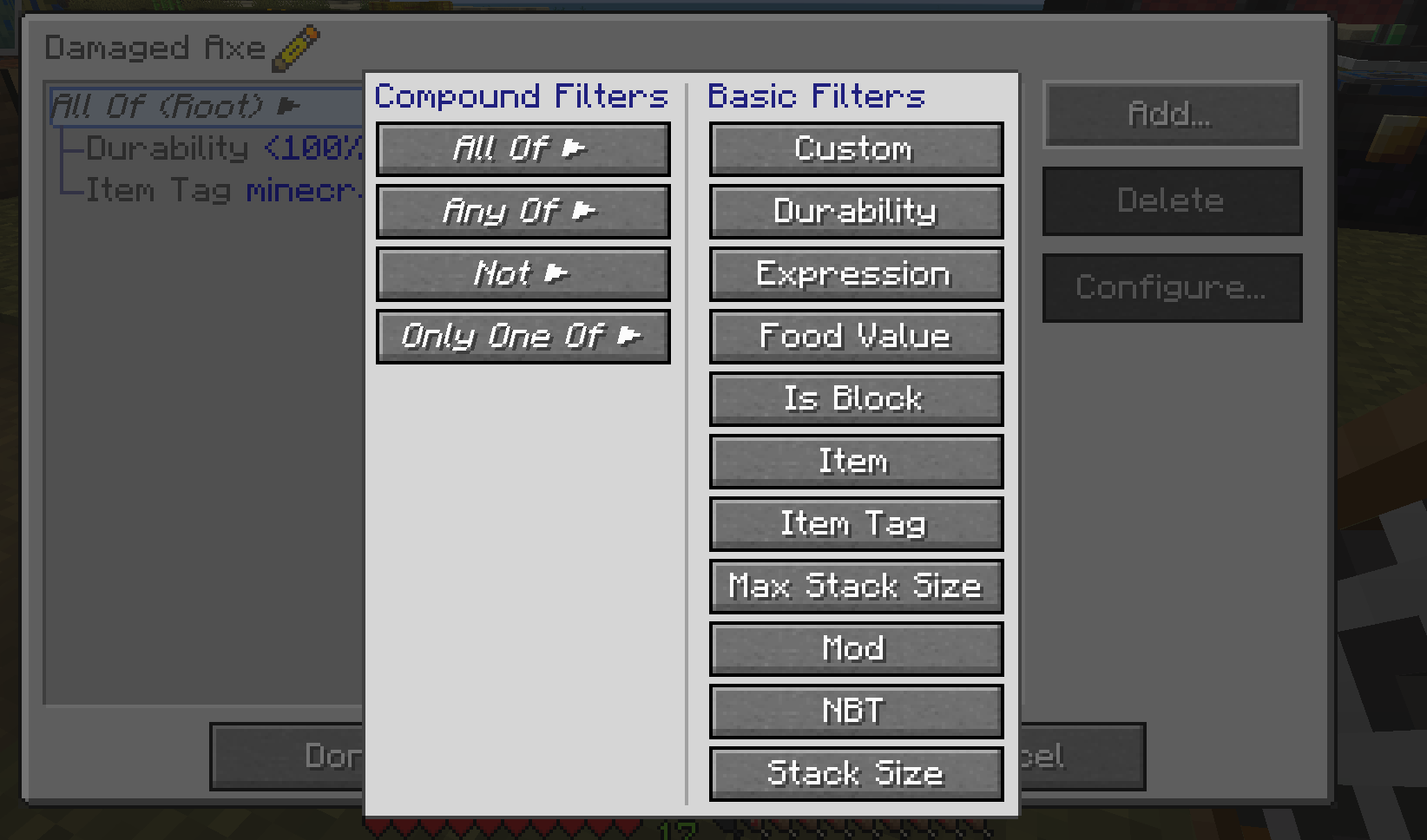 Filter types Out of the box we support a large selection of different filtering options along with having an easy-to-use API to add more
 -
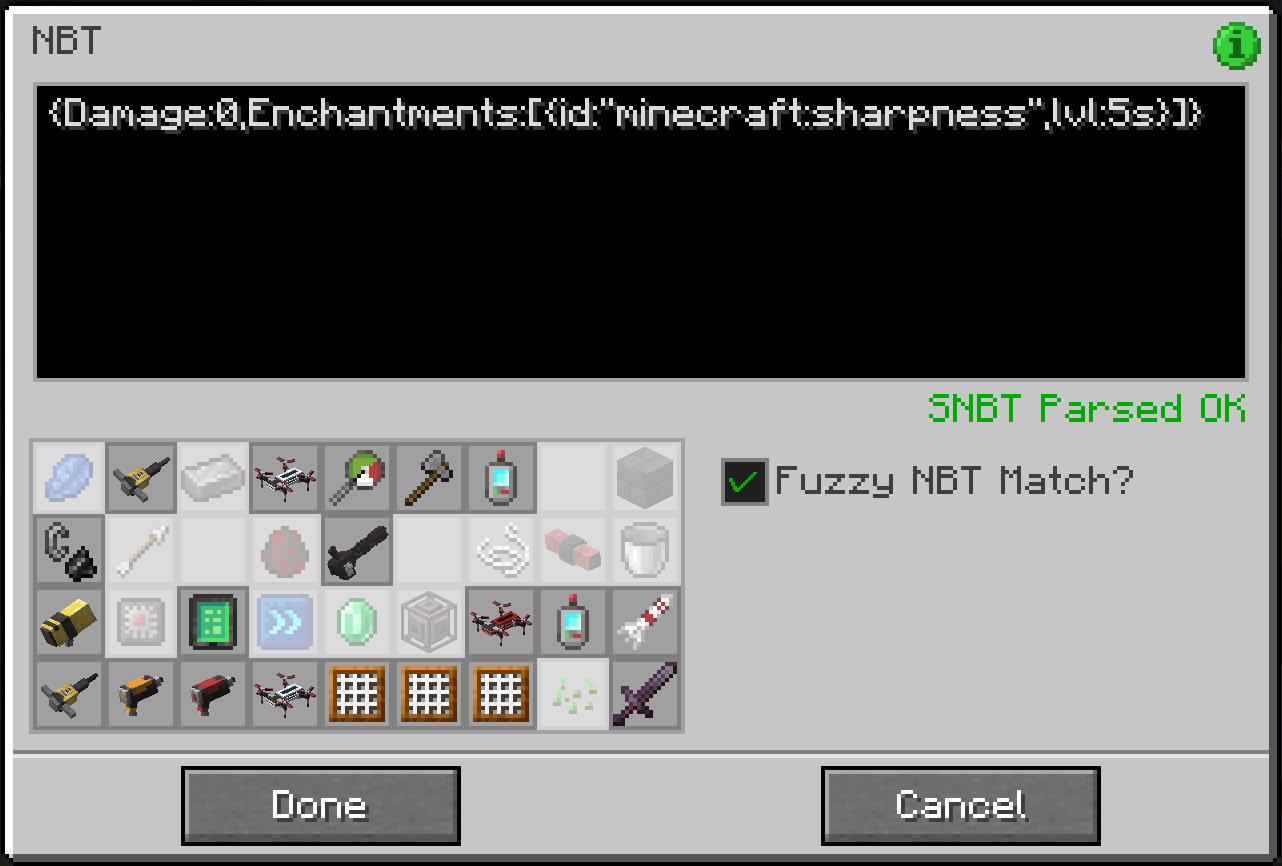 NBT filtering
 -
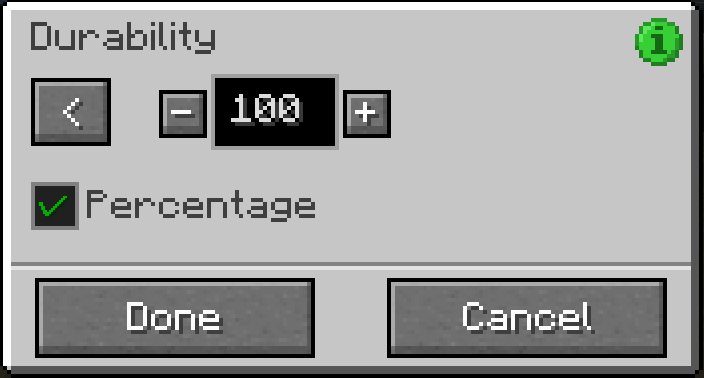 Durability filtering
 -
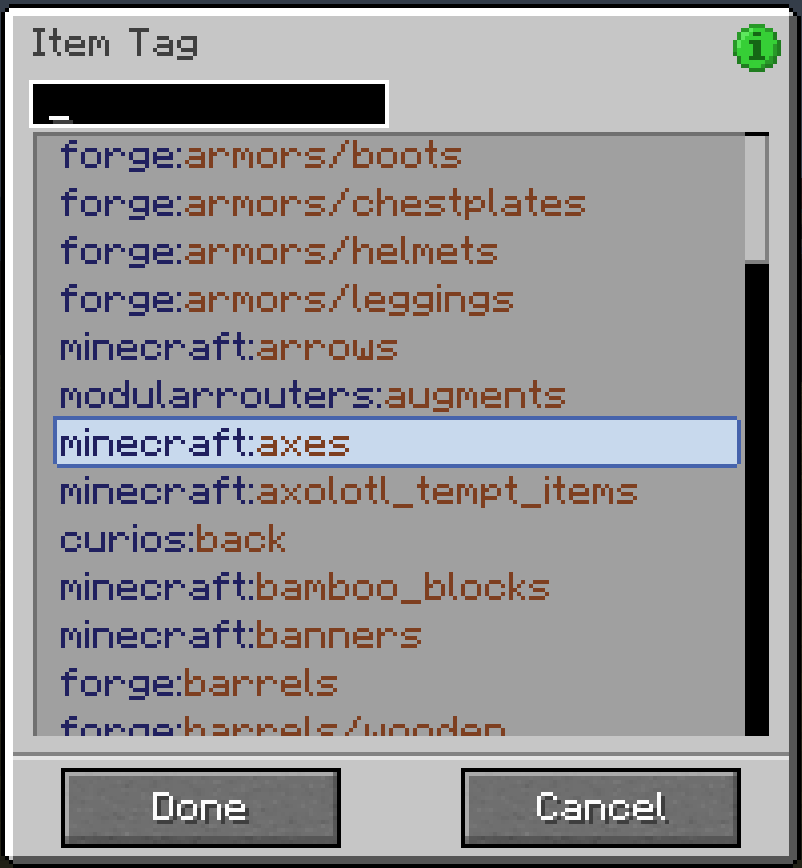 Tag filtering You can filter by lots of different factors, like tags, durability, and NBT data
 -
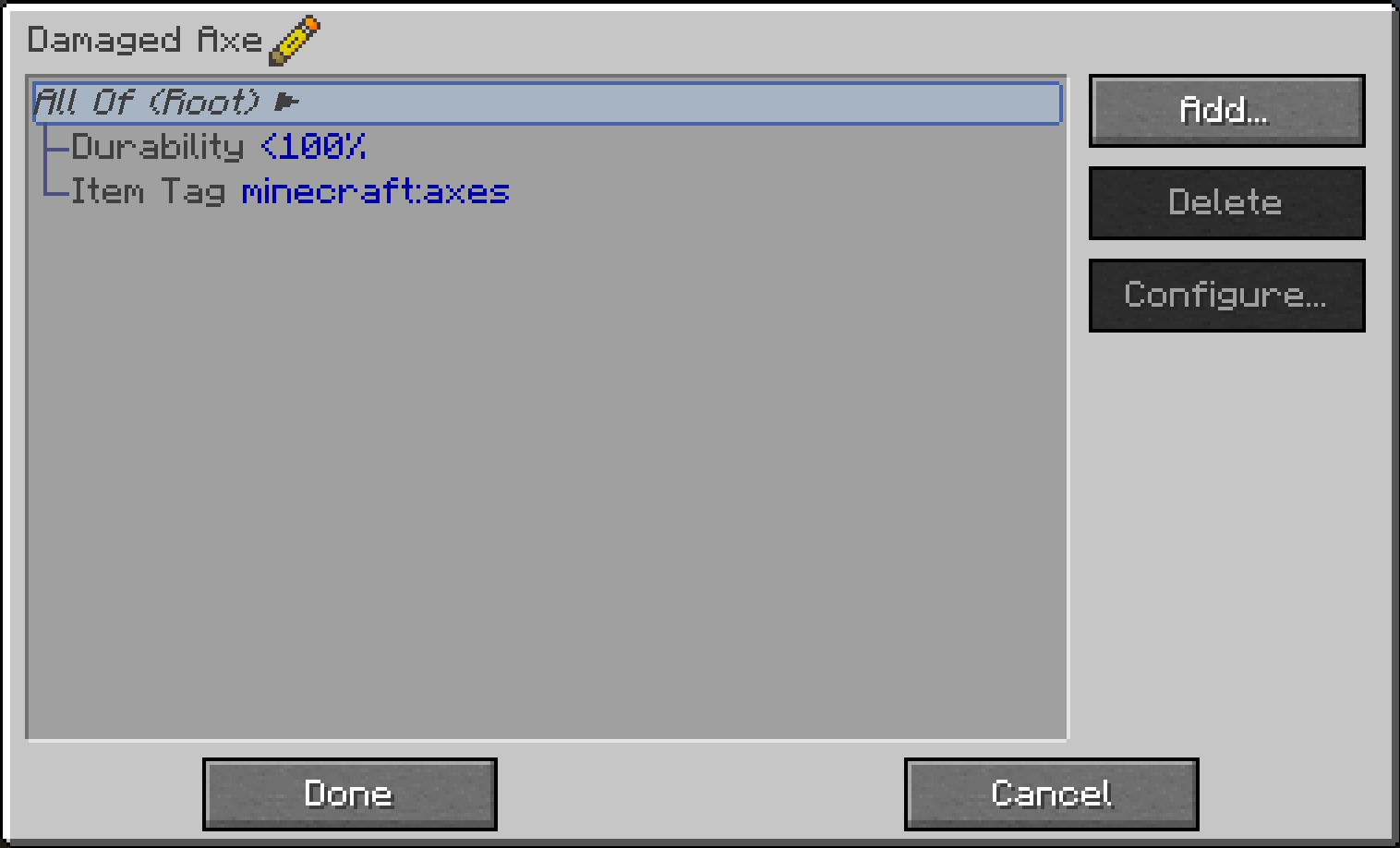 An easy to use Filter Gui Simple GUI that allows you to build a tree of filters based on different filter types
Versions
Files
Relations
Project Relations
More like this
Similar Mods
Suggestions use data such as tags, dependencies, dependents, descriptions, titles, and more to rank how much they overlap with this mod.
On ModDex
Community snapshot
By the numbers
Statistics
Want to reach Minecraft players?
We're looking for a server hosting partner to feature here and other parts of the site. Interested? Send us a message!
Get in touchGet it on
Available Platforms
On ModDex
Community snapshot
By the numbers