
Community listing page, reviews here may not be monitored by the author.
Map Tools

No reviews yet
Essential utilities for creating maps or building. Create smooth animations, realistic message printing, resource pack management, block display tools, danger command checker, position saver and much more
Community voices
Reviews
No reviews yet. Be the first to review this project!
Get it on
Available Platforms
About
Project Details
For authors
Embed Badge
If you're the author of this project, you can embed a live badge anywhere that supports HTML or Markdown. It updates automatically whenever ratings change.
Use HTML for any page that supports it, or Markdown for README files and Markdown-based descriptions.
Identifiers
Platform IDs
About
Description
Map Tools
Map Tools helps you to create various things in Minecraft Maps. All features are seperated modules, that can be toggled off/on at anytime.
Everything created with Map Tools will work 100% vanilla without any plugins installed.
Map Tools saves you countles hours of work if you...
- ...work with display entites like blocks to create details or animations
- ...need smooth camera paths, transitions or entity animations (datapack)
- ...need custom npc/entity pathing, e.g. for adventure maps (datapack)
- ...want fancy styled or even animated messages or titles (datapack & resource pack for nametags)
- ...quick load and constantly change resource packs
- ...and more!
Watch the video to see everything! (Or scroll down to read about every module in detail)
Coming Soon - I hate cutting...
 (meanwhile enjoy this gif)
🧩 Module Breakdown
Every module can be toggled on or off via /maptools module <module> <enable/disable>. If toggled off all interactions and commands instantly disappear but already saved creations will still work.
A few modules are only useable if you supported me on KoFi. If you think Map Tools saved you some hours of work worth a coffe, i would appreciate any support ❤️
All Modules - Click to unwrap
Smooth Animations
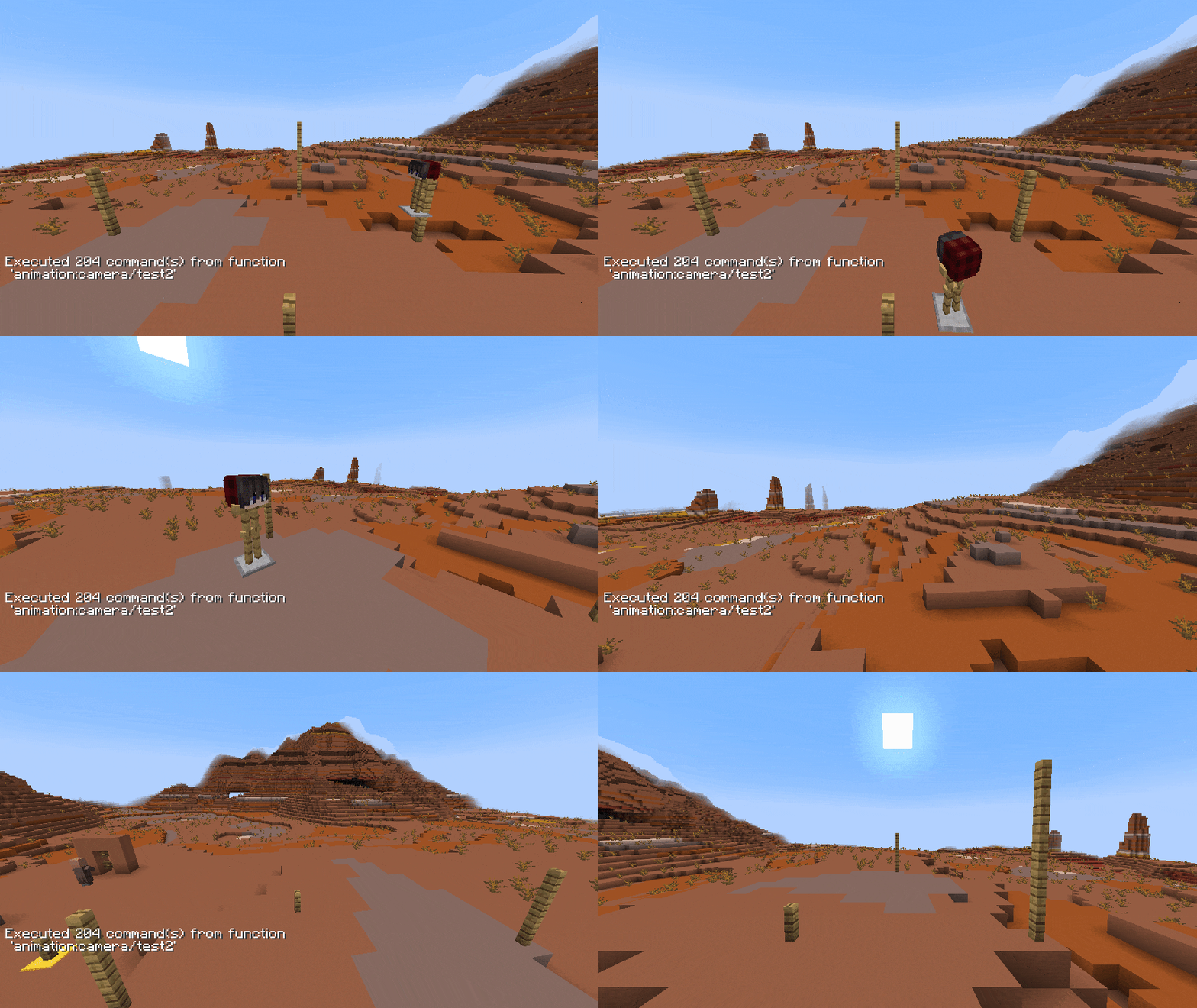
Create smooth animations for entities any type. This can be used for camera paths (i highly recommend to animate an armorstand and force the player to spectate it, this highly increase the animation smoothness) but also for detailed display animations. You can set it up to auto loop.NOTE - After printing, the animation can be used/played without the plugin via datapack
Guide
Start with entering /animation new to begin a new setup. Now you can add as many new control points as you want to manipulate the animation with /animation add. The added point is your current location and you need at least 3 to create proper interpolation. Remove unwanted positions with /animation remove-last. To complete or test your animation render it with /animation render <loop> <ticks> <target> (loop:true will connect the last point with the first, ticks is the animation time between each point and target a given selector). After rendering you can either continue modifying your animation or print it to a usable datapack function via /animation print <target> <name> (name represents the function name, use " " for nested paths e.g. "camera/island/front"
Block Update Toggler
Annoyed by stairs auto connecting? Sand is falling away? Disable all block updates when placing or breaking blocks. Don't forget to turn it on later on! (Removing the plugin will also enable block updates)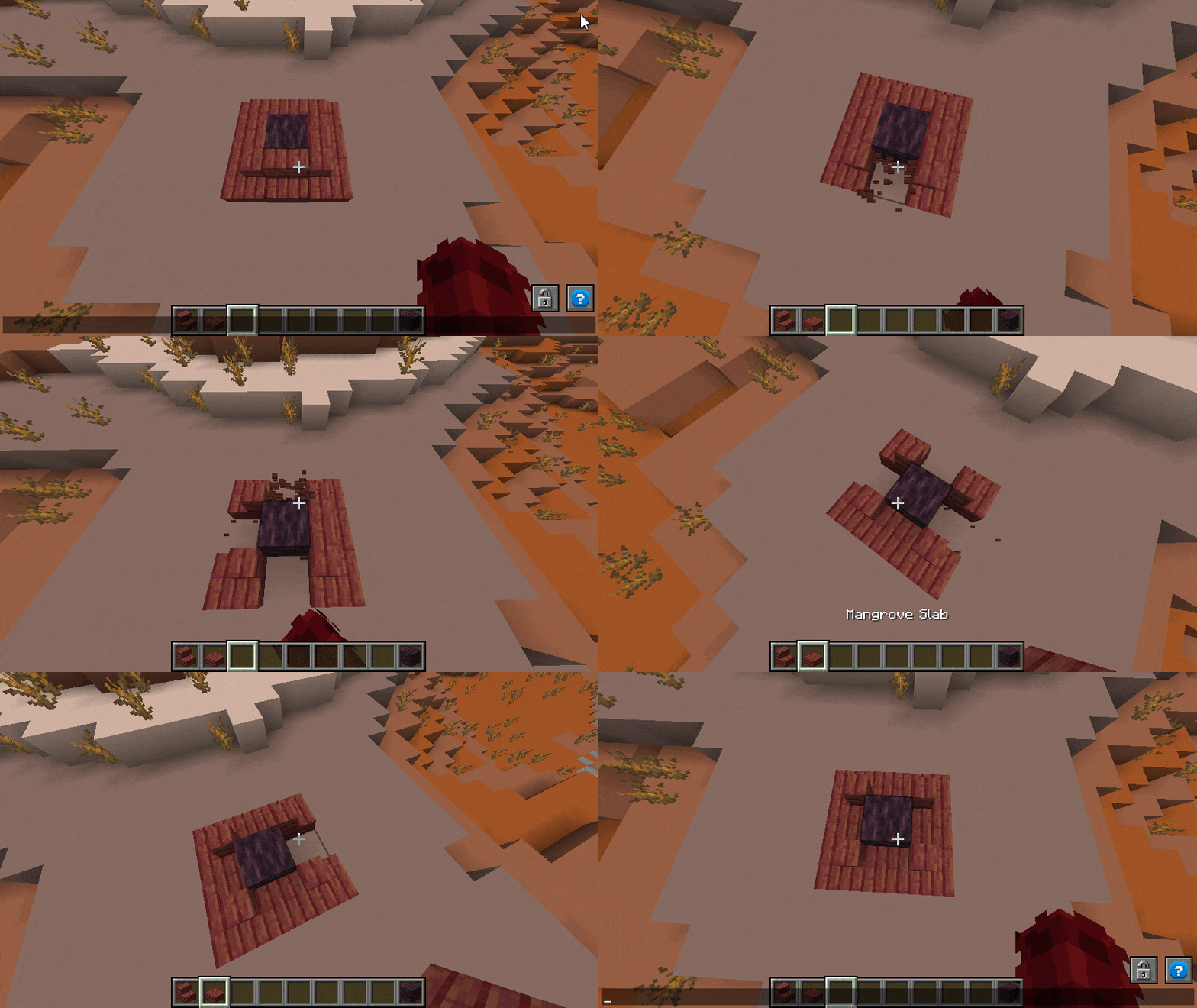
Guide
Use /block-update toggle to turn any updating on block placing/breaking.
Command Tool Binding
Don't want to enter a command multiple times? Bind any commands to your favorite item and click with it on a block to execute this command at the clicked position. If you don't target any block, the command will be executed on your position. Command items persists through restarts.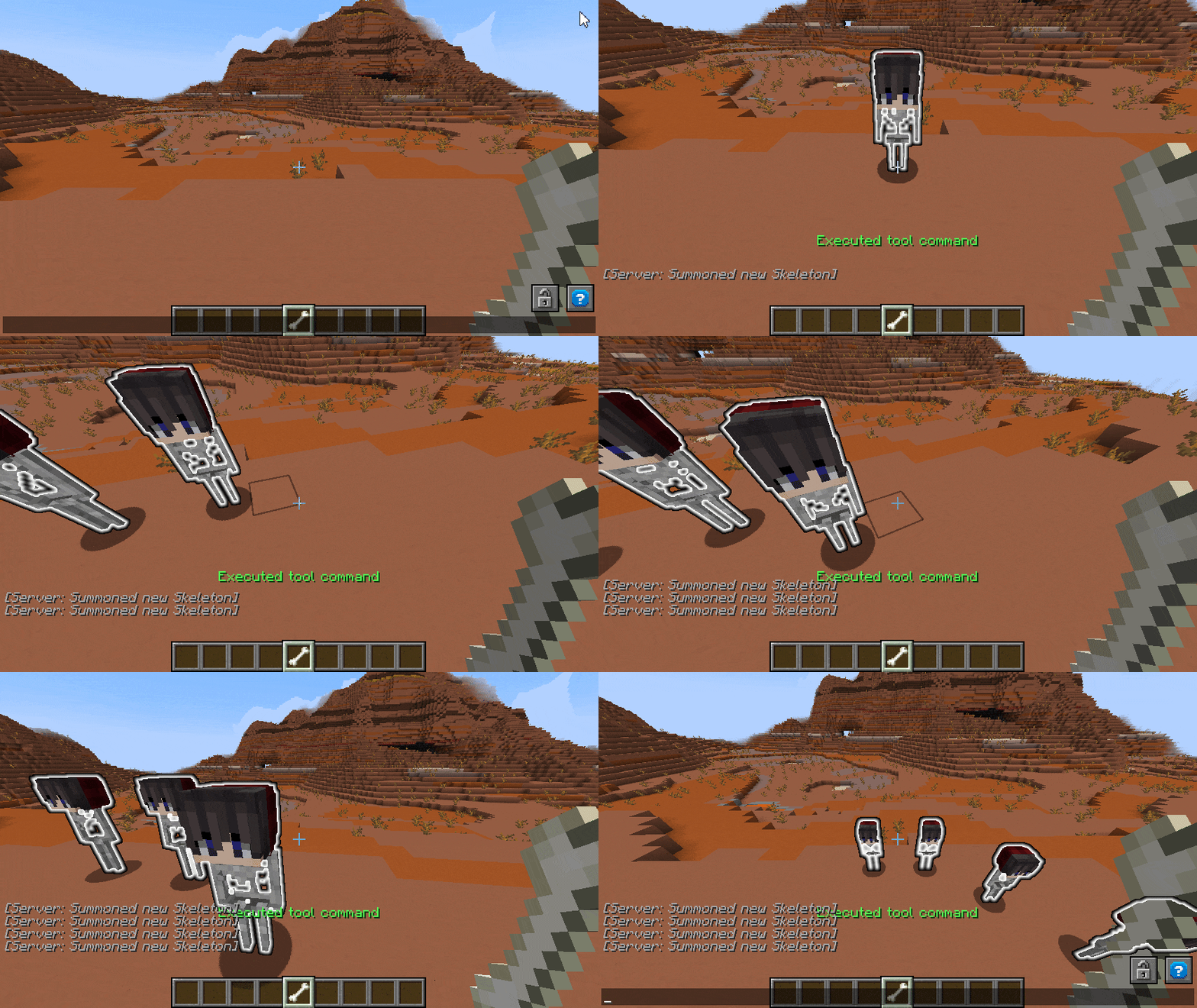
Guide
Take an item in your hand and enter /commandtool command <command> to apply any command to it. Use /commandtool clear to remove it again
Block To Display
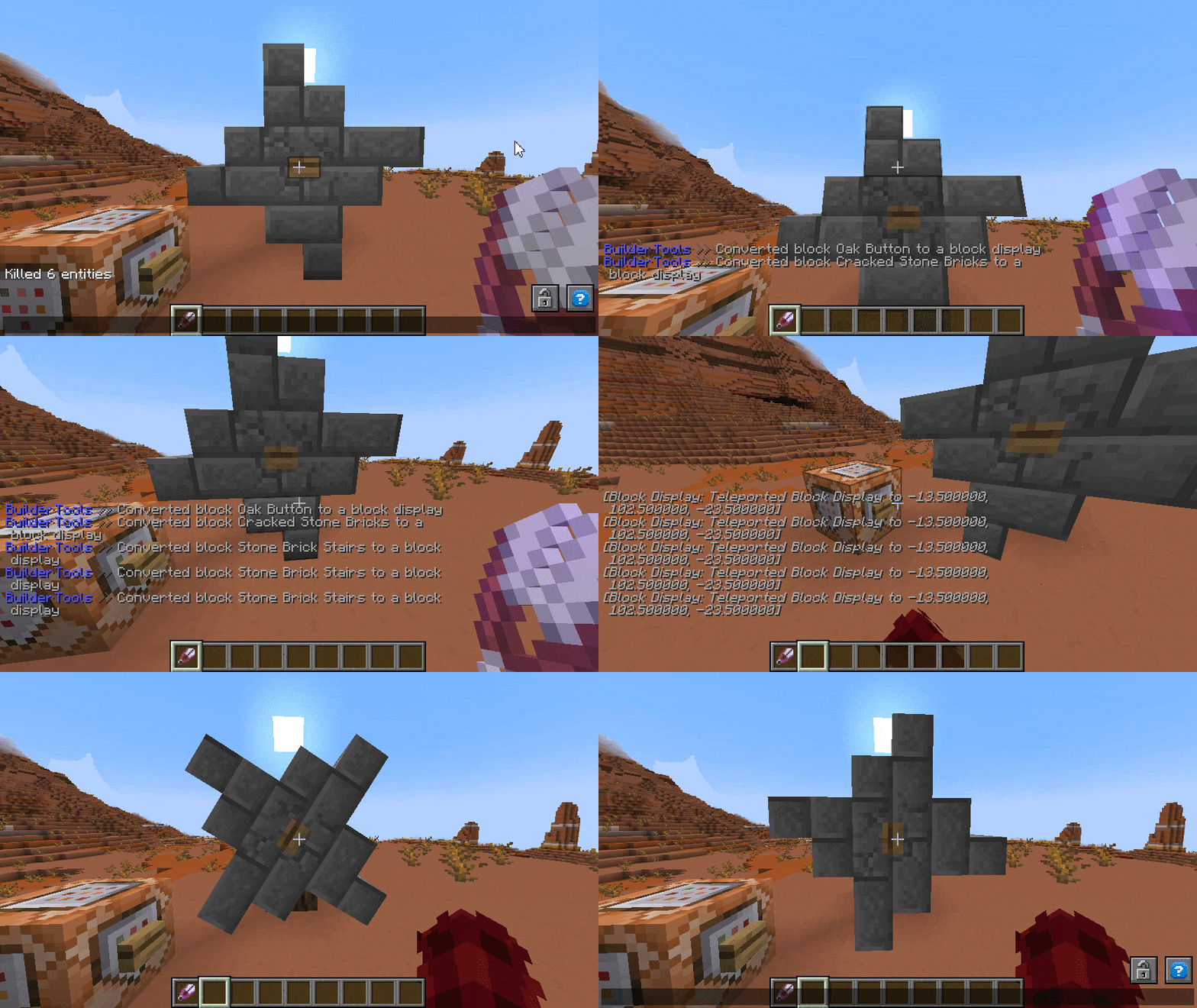
Turn blocks into their non solid state - Block Displays. With block displays you can easily animate any structure or single blocks by scaling, rotating, reforming and moving it around. In comparison to falling blocks, block displays are way more soft for client and server so you can use up to ~1.000 displays in one area without much performance impact.
Guide
To convert a single block use /blockify <position> <tag> <scale> [origin] (tag will be applied as tag to the created entity, scale is the final scale of the block where 1 is default, origin is the source location -> useful multi-block structures that should rotate). For easier use get the tool with /blockify-tool <scale> <tag> [origin] and click on any blocks to convert them
Hitbox Anything
You want custom interactions on certain blocks or entities? Or just want to avoid any interaction with it at all? Wrap a hitbox (interaction) around that automatically adjust its size to the blocks/entities hitbox size. Now you can detect either left or right clicks (or both) on the hitbox.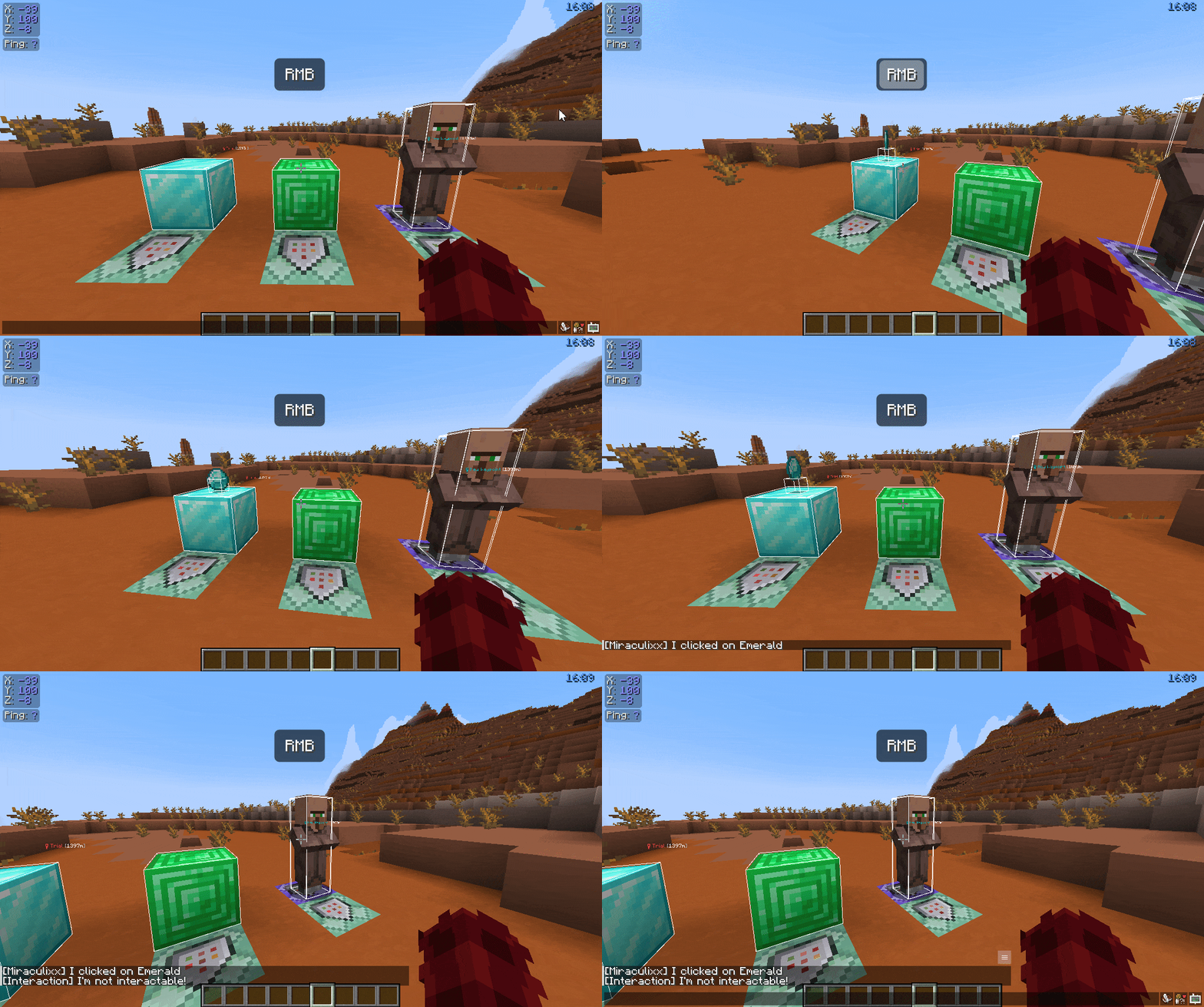
Guide
To wrap an interaction hitbox around any entity or block enter /interaction spawn <target> [tag] [space] (target can be a block or selector, tag will be applied as tag to the interaction, space is the extra amount of size relativ to the source hitbox size in blocks). For easier use get the tool with /interaction tool <tag> and click on any block or entity
Leash Fences
Finaly you can connect fences with other fences with leashes. Thats it. Why is this not a vanilla feature?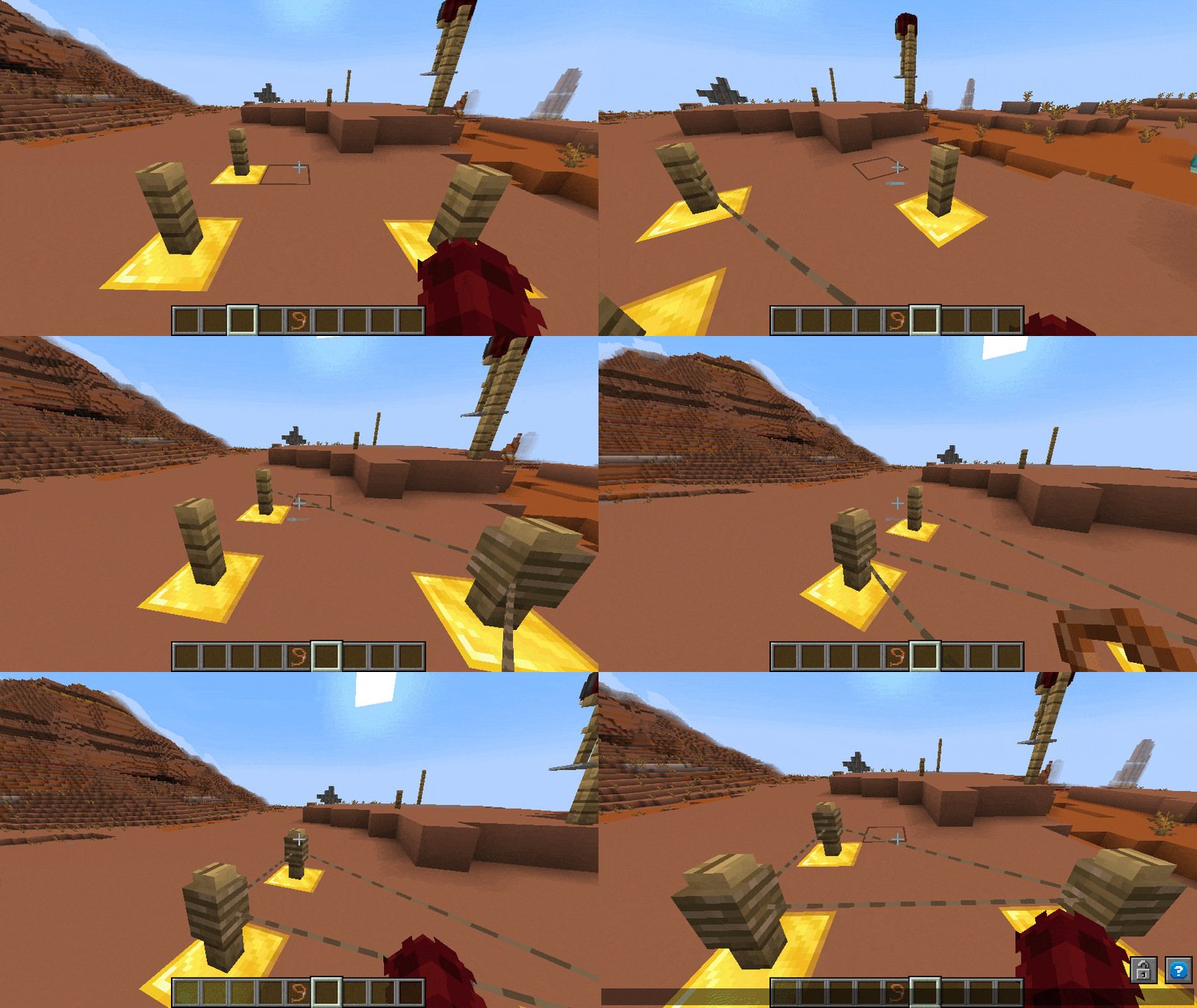
Guide
Take a leash in your hand and click on any fence (not walls, use block entities for them). Now click on another fence without the leash in hand to connect them. Otherwise use /leash <from> <to> to connect two fences
Block Marker
Its easy to execute an action on any entities. But what about blocks? Mark them with the new marker tool (using marker entities - markers does not get sent to the client -> no performance impact) use your set tag to do anything you want!Guide
To get the marker tool enter /marker-tool <tag> (tag will be applied as tag to the marker entity). Now you can right click any blocks to add the marker and left click to remove it again. Markers do not have any hitbox so to find them again you can use /marker-finder <range> (range in blocks) to highlight all around you with green particles"
Multi Tool (like WorldEdit for entities)
The multi tool allows you to easily edit any entity in your world but it was mostly designed for display entities. Choose your target entity type and select as many targets as you want. Now you can move & rotate them by looking into a direction or simply delete all. Also you can execute commands for every entity in your selection. While every entity type gets highlighted by green particles/glow, block displays instead recieve a yellow overlay for better visualization.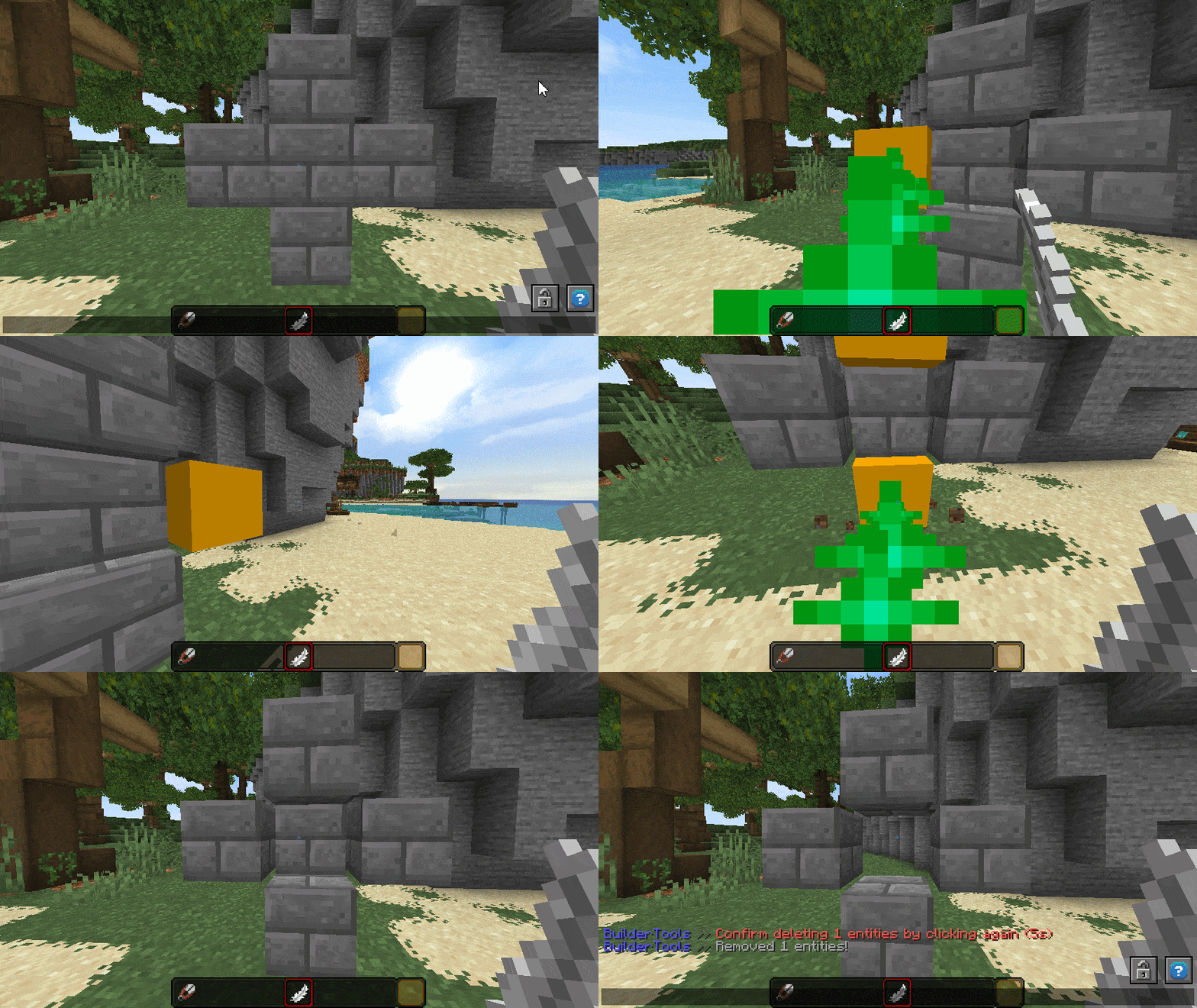
Guide
The multi tool is very complex and you might need some time to get used to it. Get one with /multitool get <entity> <radius> <vector> (entity only targets entities by your selection, radius is the amount in blocks the beam search for entities, vector is the amount in blocks/degrees your selection will be moved/rotated). You find all hotkeys in the tool description. To switch between move and rotate mode enter /multitool mode <move/rotate> or move/rotate your selection directly with /multitool rotate-by/move-by <vector> or change the beam range with /multitool range
Fancy Name Tags
Seen those fancy name tags or rank tags on some servers? Why not easily creating those for our own! Simply input any text (currently supports A-B, 0-9, .:,;-_?!#) and all needed colors in hex (supports transparency). Now a new image will be generated bound to a unique new character that you are prompted to copy after creation. Don't forget to save it :)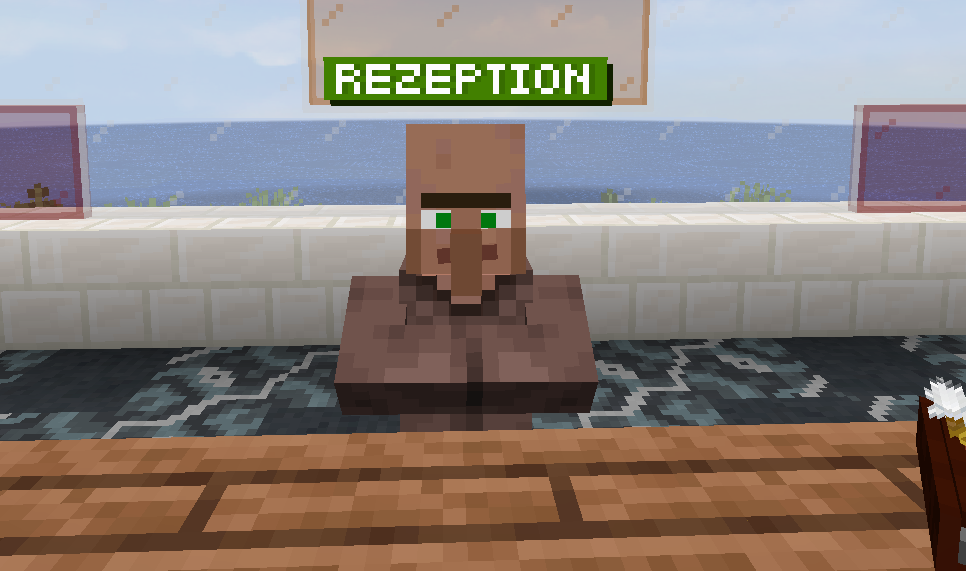
Guide
To create those custom name tags simply enter /nametag <text> <main> <shadow> <char-shadow> [char] (text must be alphanumeric with a few extras like #-.,:;?!). All arguments (except text) are hex colors that support transparency. For example #ffffff represents white and #ffffff7f represents white with 7f (~50%) transparency. After generating the new image it will be added to the defined resource pack with a new generated char that you can copy from chat. You NEED to reload your pack from the server to see it!
Animated Messages
Talking NPC's? Story telling? Sending just a wall of text isn't very pleasing. Why not animate your messages with dynamic speed and custom pauses to help to player reading along! You can input a prefix that will always be visible from the start and the text that animates in (both supporting MiniMessage). If you need a full conversation, Map Tools allows you to create a json file containing a list of prefix+message that will be parsed. All messages are printed to datapack and can be used without the plugin.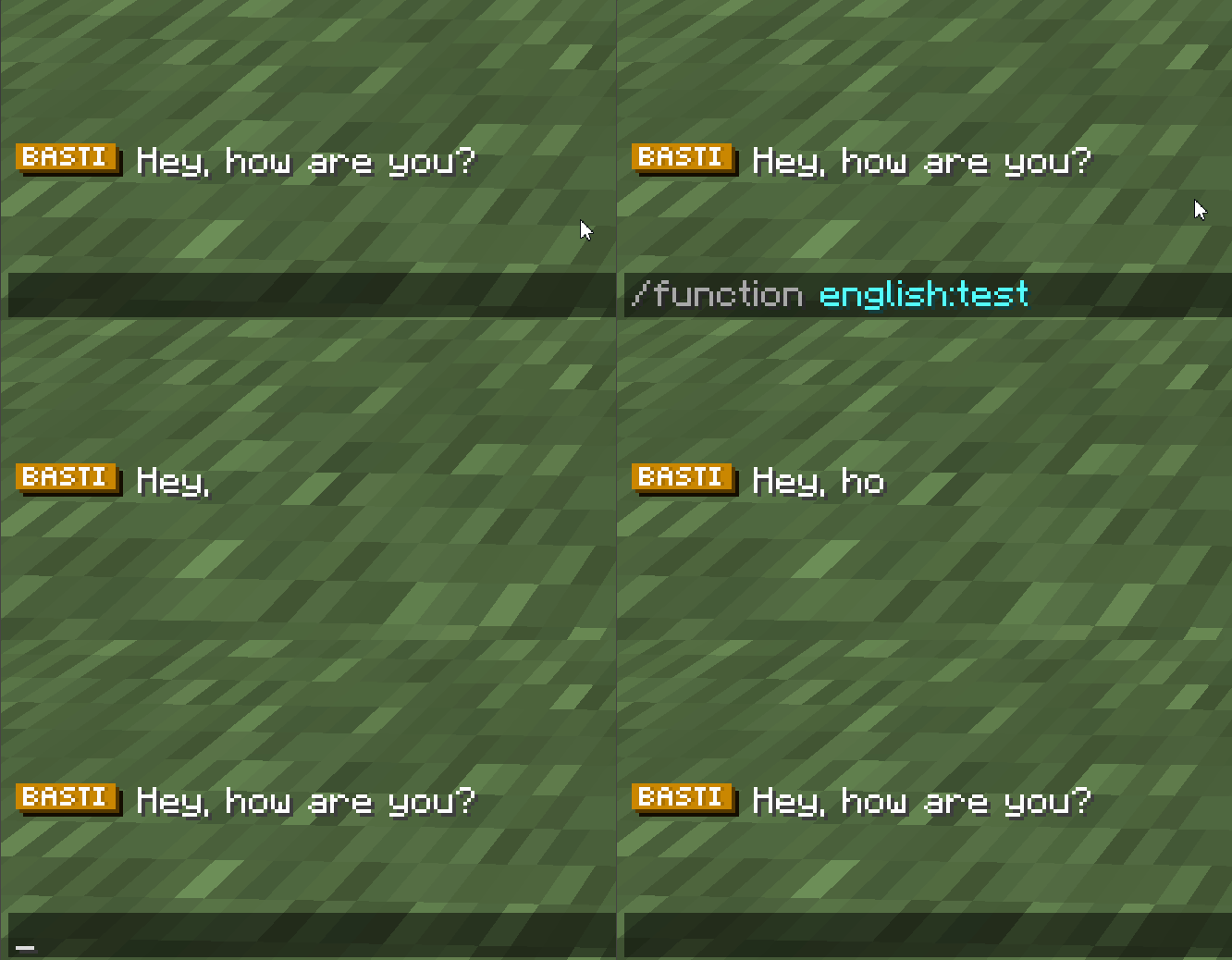
Guide
To create a single animated message enter /message new <prefix> <message> <target> <name> (prefix always visible, message will be animated - use ① ⑤ ⑳ symbols for pauses, name is the function name - use " " for paths). All pause symbols can be copied from /message symbols. To parse a conversation json use /message conversation <path> (path of the conv.json starting by the function folder). The required syntax is as follows:
{
    "target": "@a",
    "content": [
        {
            "prefix": "<red>Miraculixx</red>: ",
            "text": "Hey,⑤ what's up?"
        },
        {
            "prefix": "<yellow><b>You</b></yellow>: ",
            "text": "Nothing really,⑤ just reading those docs..."
        }
    ]
}
Custom Entity Pathing & Scripting
⠀
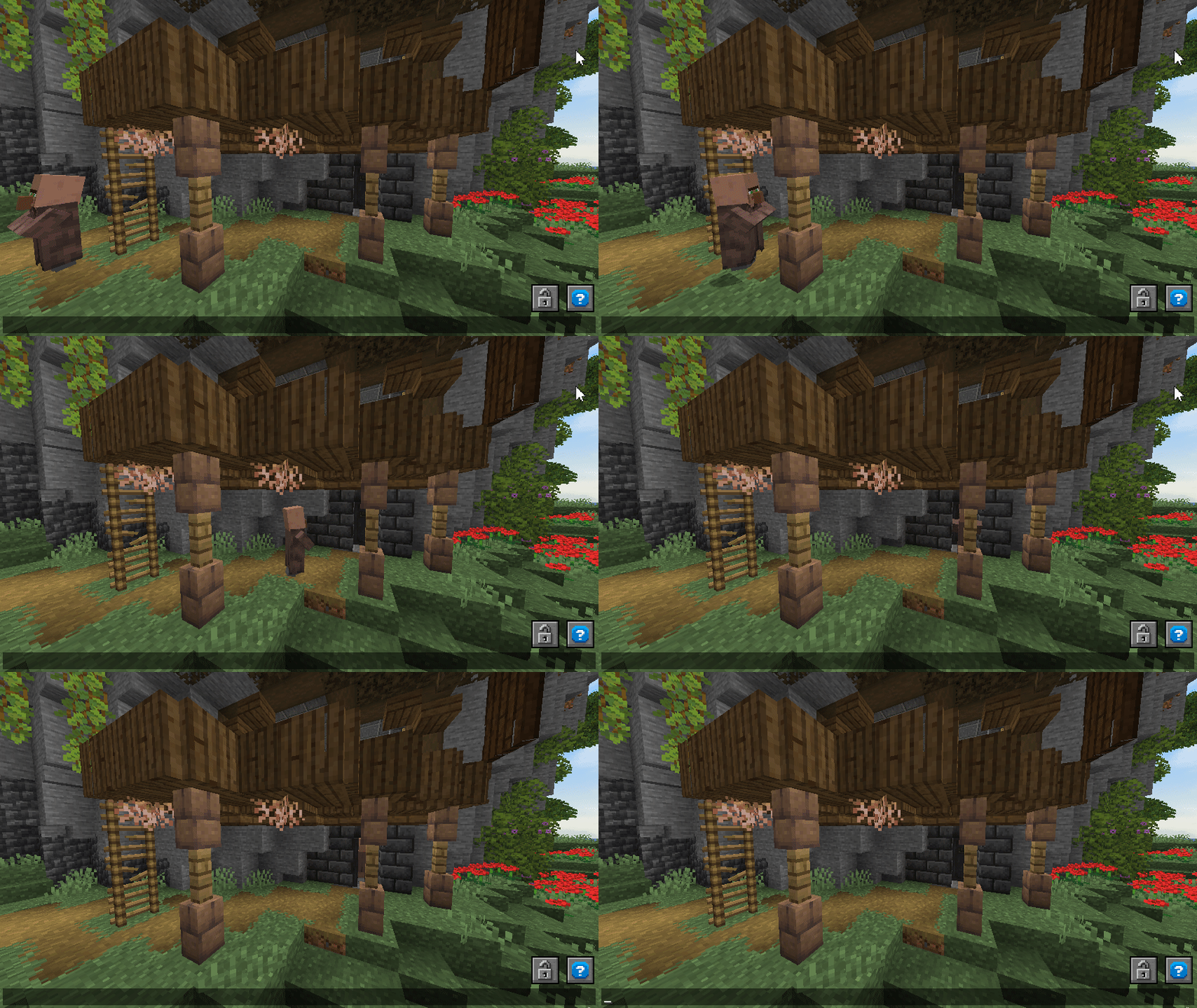
Pathing is our most powerful tool for creating custom animations or pathing finding. From a simple order of a few commands that will be executed each one tick delayed to custom entity movement only your imagination is limiting here.
You can add the following things to your script: command (simply executing given command as the script target), delay (wait x ticks before continuing), repeat (similar as command but repeating x times on tick delayed each), position (moves the script target from start position to entered position with x speed. Plays walk animation if touching ground & not too fast).
Guide
To start a new pathing script enter /pathing new <target>. Now you can add anything to the script e.g. /pathing add-position <position> <speed> (speed in blocks per second), /pathing add-command <command>, /pathing add-delay <delay> (delay in ticks). To remove unwanted enter /pathing remove-last. Now you can either play the pathing with /pathing play (start position might not be accurate) or print it to datapack with /pathing print <name> (name is the function path). Along with the function, a json config with the same name will be created so you can modify and reprint the script at anytime with /pathing reprint <name>. Ofcourse you can only create those json files instead of using ingame commands with following syntax:
{
    "target": "@e[tag=test]",
    "actions": [
        {
            "type": "REPEAT",
            "time": 100.0,
            "script": "particle minecraft:cloud ~ ~-0.2 ~ 0 0 0 0.04 3"
        },
        {
            "type": "CONTROL_POINT",
            "location": "{\"world\":\"world\",\"x\":4.5,\"y\":139.5,\"z\":-8.1,\"yaw\":10.0,\"pitch\":35.5}",
            "time": 0.1
        },
        {
            "type": "DELAY",
            "time": 20.0
        },
        {
            "type": "RUN_SCRIPT",
            "script": "say test finished"
        }
    ]
}
Tag Tool
Adding, removing or just getting alls tags from entities is a key action for (adventure) map creating. But why entering the commands everytime for every entity? Just grab the tag tool and click on any entity to add/remove all given tags or check if the tags are already applied.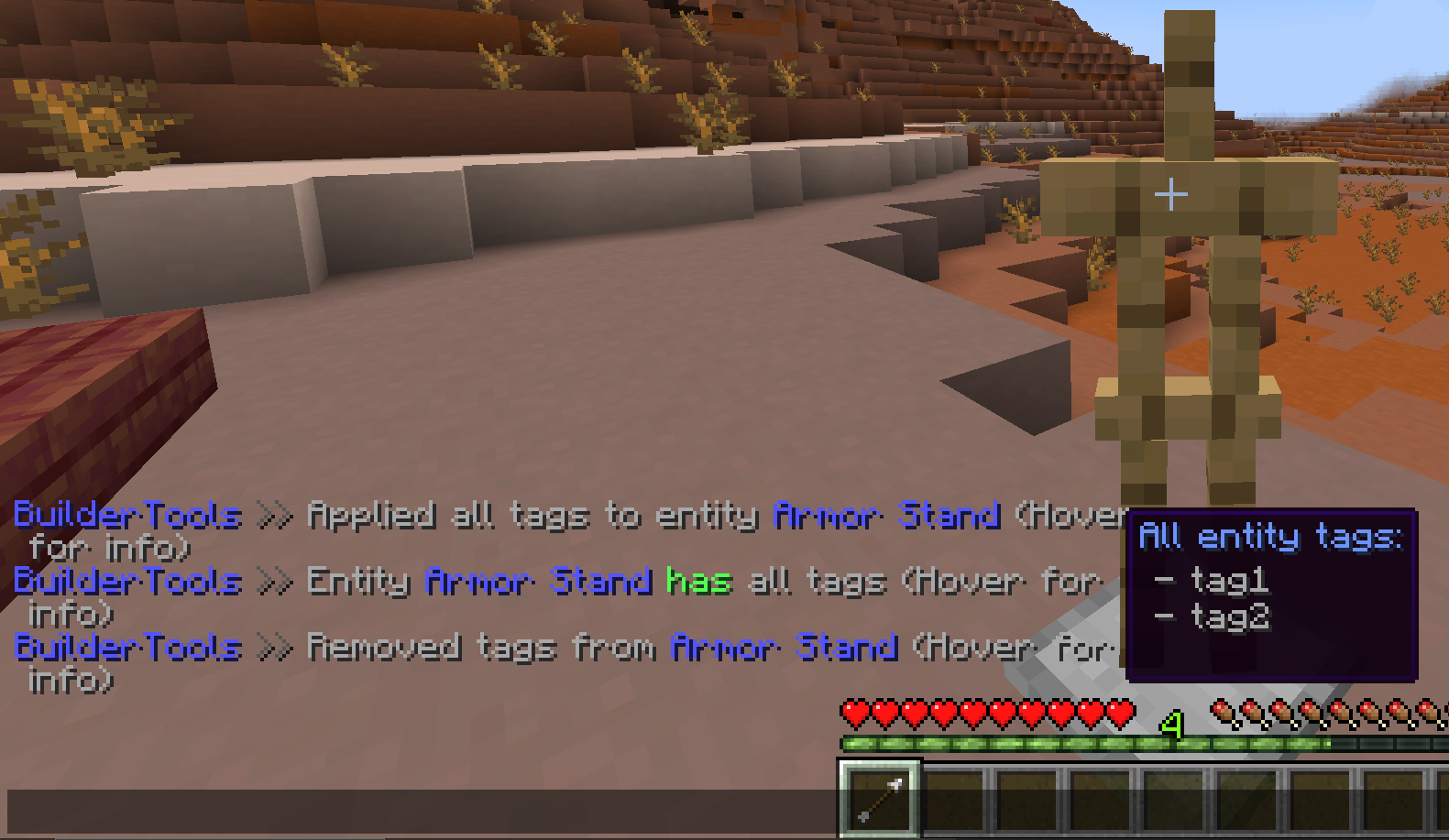
Guide
To get a tag tool enter /tag-tool <tags> [entity-type] [radius] (tags are all tags that will be added/removed/checked - use "tag1 tag2 tag3" for multiple tags, optional entity-type to filter targets, radius is the selection radius in blocks for entities without hitboxes). All keybinds are visible by hovering over the tool item.
Auto Resource Pack
Creating server/world specific resource packs can be very annoying, specially when working together. MapTools simplifies this process for you by only needing to have all assets on your server! Edit them safely in any folder by anyone and request them ingame via command. MWeb will build and send all assets found in your resourcepack folder to you. You can also configure multiple groups e.g. when working with different versions/places and auto load them on joining.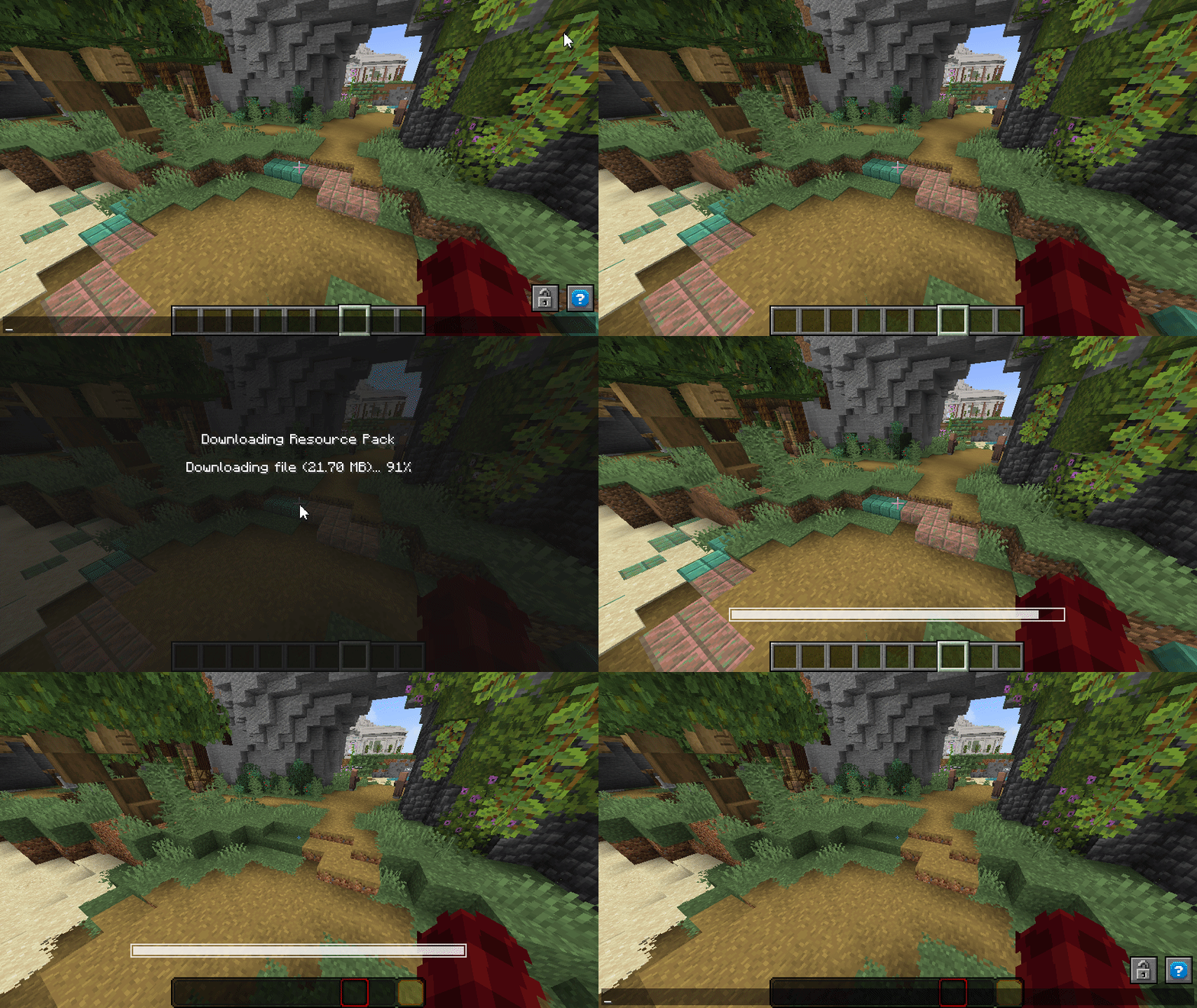
Guide
Requires MWeb. The main pack folder and groups can be configured inside the settings.yml. If you defined texturepack as your main folder, you can put any resource packs inside this folder (unziped). Folders starting with a . will be excluded and folders named like a group will only be loaded if the group is requested. Manually request RPs by /resourcepack <group> and auto request on joining by /tag @s add <group>. Example folder structure for settings texturepack-folder: "texturepack" and texturepack-groups: ["guis","optifine-entities"]:
Server Folder
|- texturepack
   |- .test-icons   //will be excluded
   |- blocks   //always loads
   |- guis   //only loads on requesting guis
   |- optifine-entities //only loads on requesting optifine-entities
Where each folder needs classic resource pack structure:
blocks
|- pack.mcmeta  //ONLY needed ONCE
|- assets
   |- minecraft
      |- <content>
Position Saver
You build something and don't want to search it the next time? Just save the position with a good name and teleport to it at anytime. Can be used with keywords like location, loc, position, posGuide
To save a new position enter /pos new <name> and to teleport enter /pos tp <name>. You can also delete one or all (reset) saved positions.
Command Checker - Prevent Danger Commands
⠀
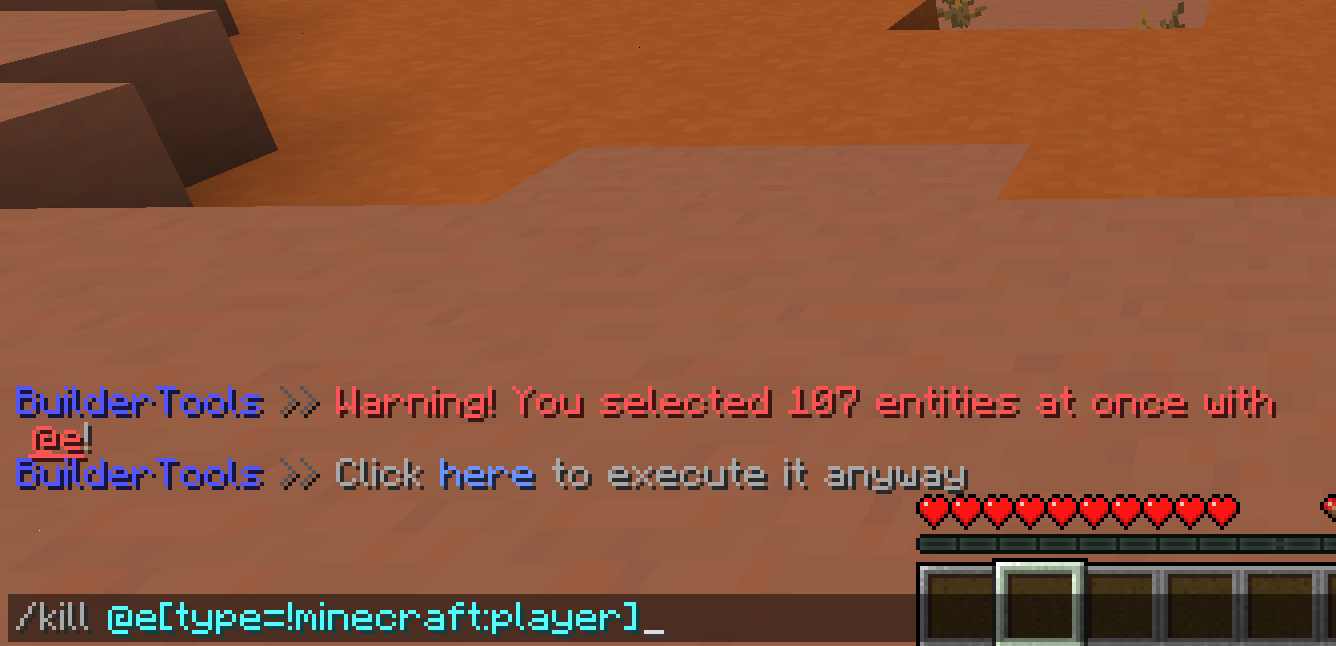
Creating specific entities and displays can take a lot time but deleting them forever takes only one command... MapTools scans all your entered commands and check how many entities will be modified by it (searches for selectors like @e[...]). If more then a configured amount (default 10) entities will be modified by a command, it will not be executed and you receive a warning. Still want to enter it? Confirm it by either hitting here in chat or execute it twice in row. /kill @e is blocked completely. (I wish someone had made this before me...)
Guide
Nothing for you to do here. Still, be careful what you enter. MapTools only checks vanilla styled commands. Some plugins tend to use a legacy command system or their own styling that may not be recognized by MapTools.
Text Styler - MiniMessage
Use easy MiniMessage text styling everywhere! Well, at least in Anvils and Signs, if you have ideas where it would be also useful just let me know!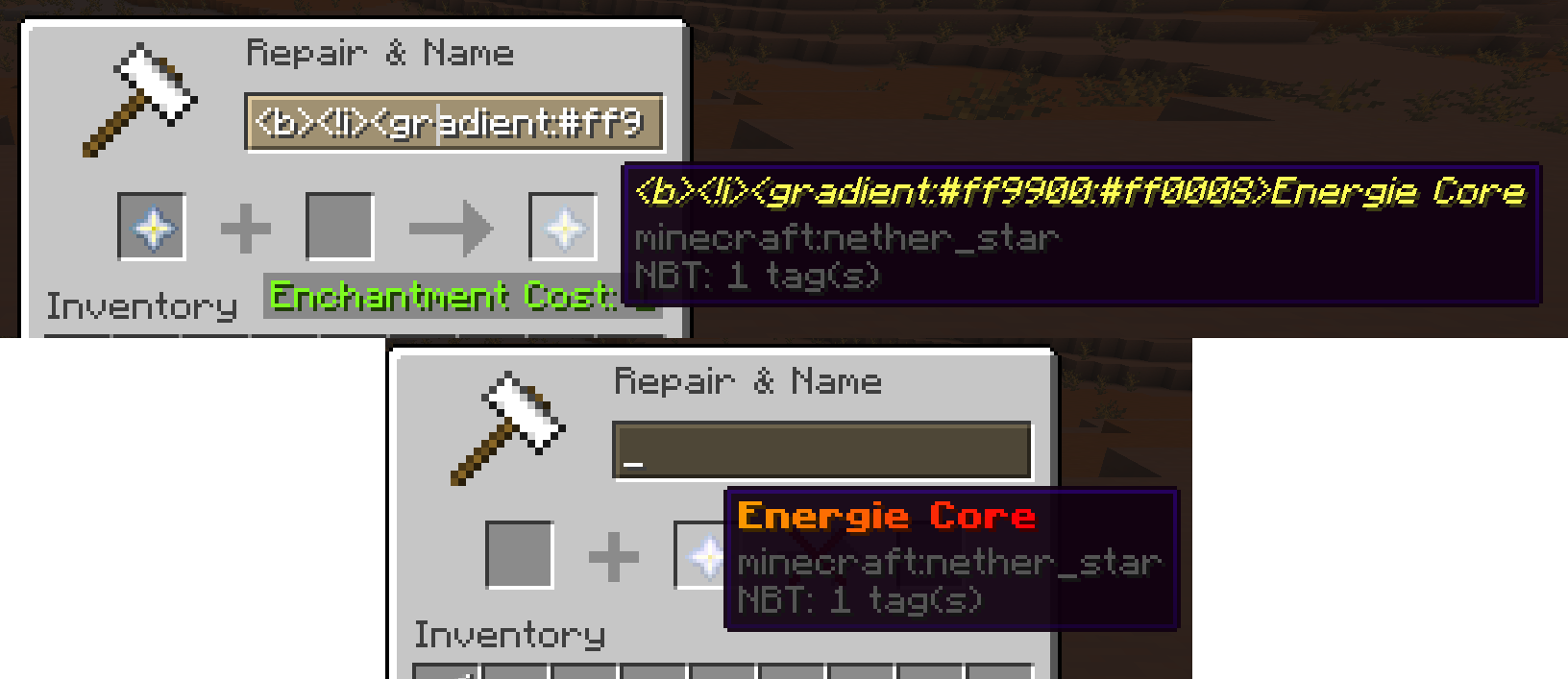
Guide
If you are not familiar with MiniMessage, it's an insane easy to use format to write text using all features text has to offer (like colors, translations, gradients, scores, ...). Read the docs here
Core Features - Click to unwrap
There are some core features that cannot be toggled off. The most useful feature is the /reload-dp command to only reload datapacks and not the entire server. Using 1.20.2 highly speeds up this process.
Experimental & Coming Features - Click to unwrap
Structure Resizer (Animated)
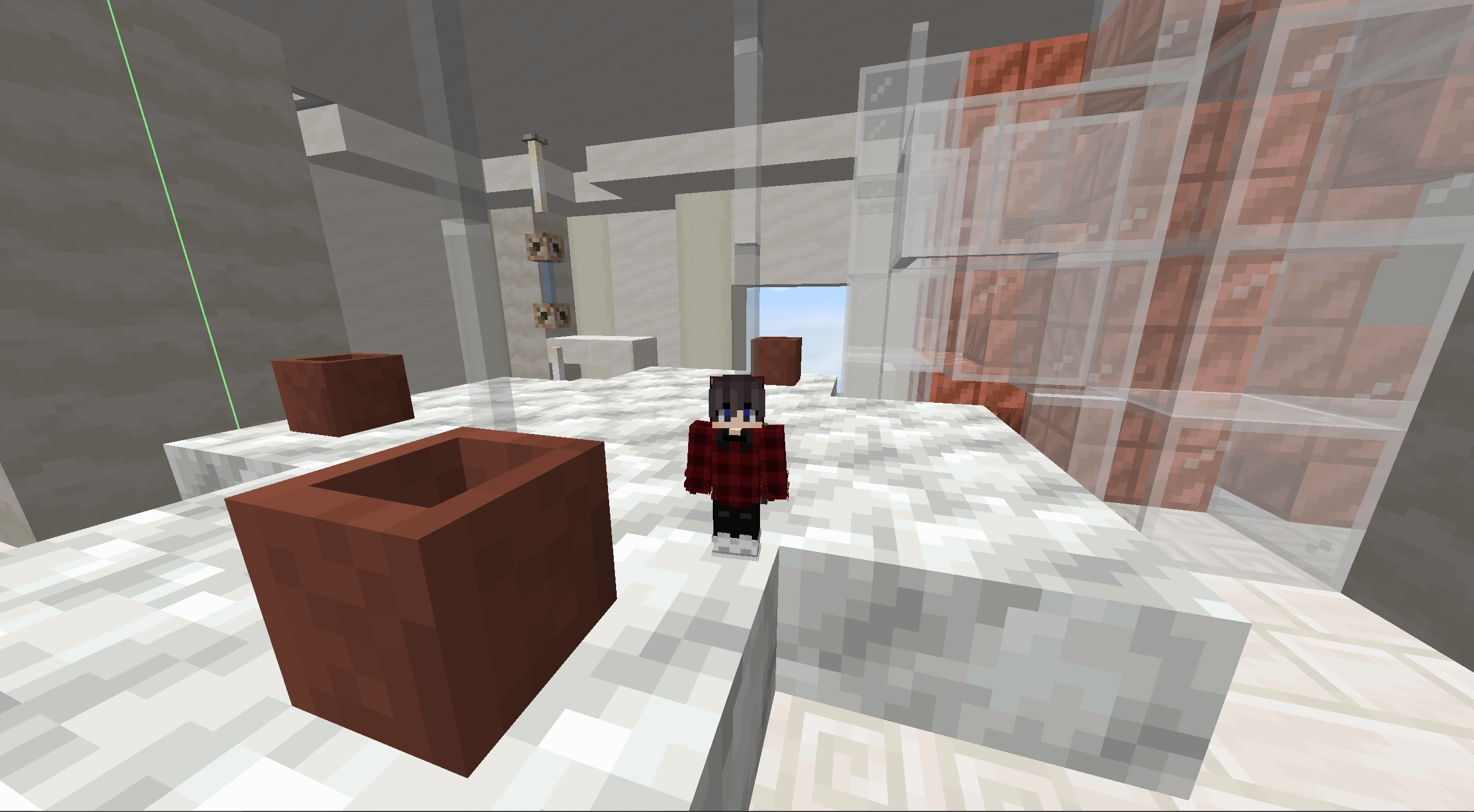
Want shrink down your building into a mini structure? Want to feel very small inside a huge room or even create creative puzzles with it? Well, at least you can easily resize rooms now with a smooth animation.
NOTE - This converts all affective blocks into display entities! Do NOT make your room too big!
Guide
To create a resize animation enter /scaling <from> <to> <origin> <name> <time> <scale> <tag> (origin defines the center position for the scaling, name is the function name - use " " for paths, time the time in ticks the animation takes, scale is the final re-scale - use even/squared numbers like 2,4,6,... or 0.5,0.25,...)
Simple Quest Book
This is a very specific module mostly used for personal use. It lets you create dynamic quest books using localization for input (so resource pack required). It also provides a hint system useful for puzzle maps or similar. Might receive more functions and better customization in the future. Let me know if it would be useful for you!
⚙️ Support & Permissions
You need help setting everything up? Questions to a specific module? Ideas for future features?
Join my Discord Server MCreate!
Every tool and command requires OP or a specific permission. Read more about all permissions in the official documentation (soon ~05.12).
Q: The command XY does not exist/is red?
A: Probably the module is disabled that adds your command. You can enable it via /maptools module <module> enable.
Q: The module cannot be enabled?
Q: How do i edit the generated functions header?
A: Some modules and editing headers requires the support version. You can get it from my Ko-Fi.
Screenshots
Gallery
-
Leash Fences LEASH module
-
MiniMessage Formatting TEXT_STYLING module
-
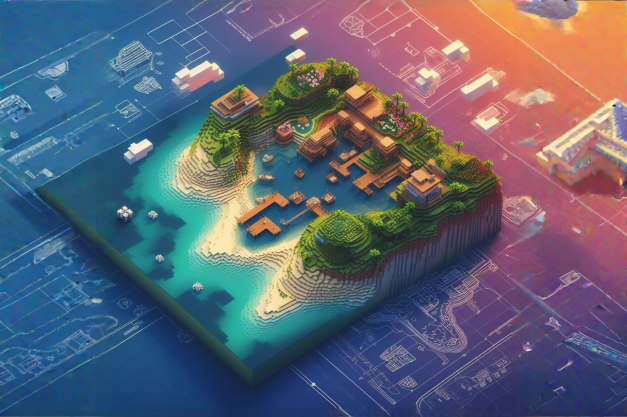 AI generated something I might can code, but 100% not design... So yeah, tried something with Dall-E and after 30min this was the best result. Might be changed in the future to fit better. Logo is self made
 -
Resource Pack Builder RESOURCE_PACK module
-
Resizer -> Big RESIZER module
-
Custom Viliager Pathing PATHING module
-
Hitbox Anything HIT_BOX module
-
Animated Message MESSAGES module
-
Blockify Display BLOCK_CONVERTER module
-
Command Tool COMMAND_TOOL module
-
Camera Animation ANIMATION module
-
Danger Command Confirm DANGER_WARNING module
-
Custom Name Tags NAME_TAG module
-
Tag Tool TAG_TOOL module
-
Multi Tool Usage MULTI_TOOL module
-
Disabled Block Updates BLOCK_UPDATE module
Versions
Files
Relations
Project Relations
More like this
Similar Mods
Suggestions use data such as tags, dependencies, dependents, descriptions, titles, and more to rank how much they overlap with this mod.
On ModDex
Community snapshot
By the numbers
Statistics

Want to reach Minecraft players?
We're looking for a server hosting partner to feature here and other parts of the site. Interested? Send us a message!
Get in touchGet it on
Available Platforms
On ModDex
Community snapshot
By the numbers